

RFP Response
The draft outline
Start from the Proposal Documents tab of a pursuit:1
Click New Document, then Automatic Proposal Draft
Sweetspot analyzes the solicitation (Sections C, L, and M) to build the outline.
2
Specify the files to use
Pick the pursuit files and Library files the draft should be based on, and add custom instructions if you have them. Then click Generate Draft.
3
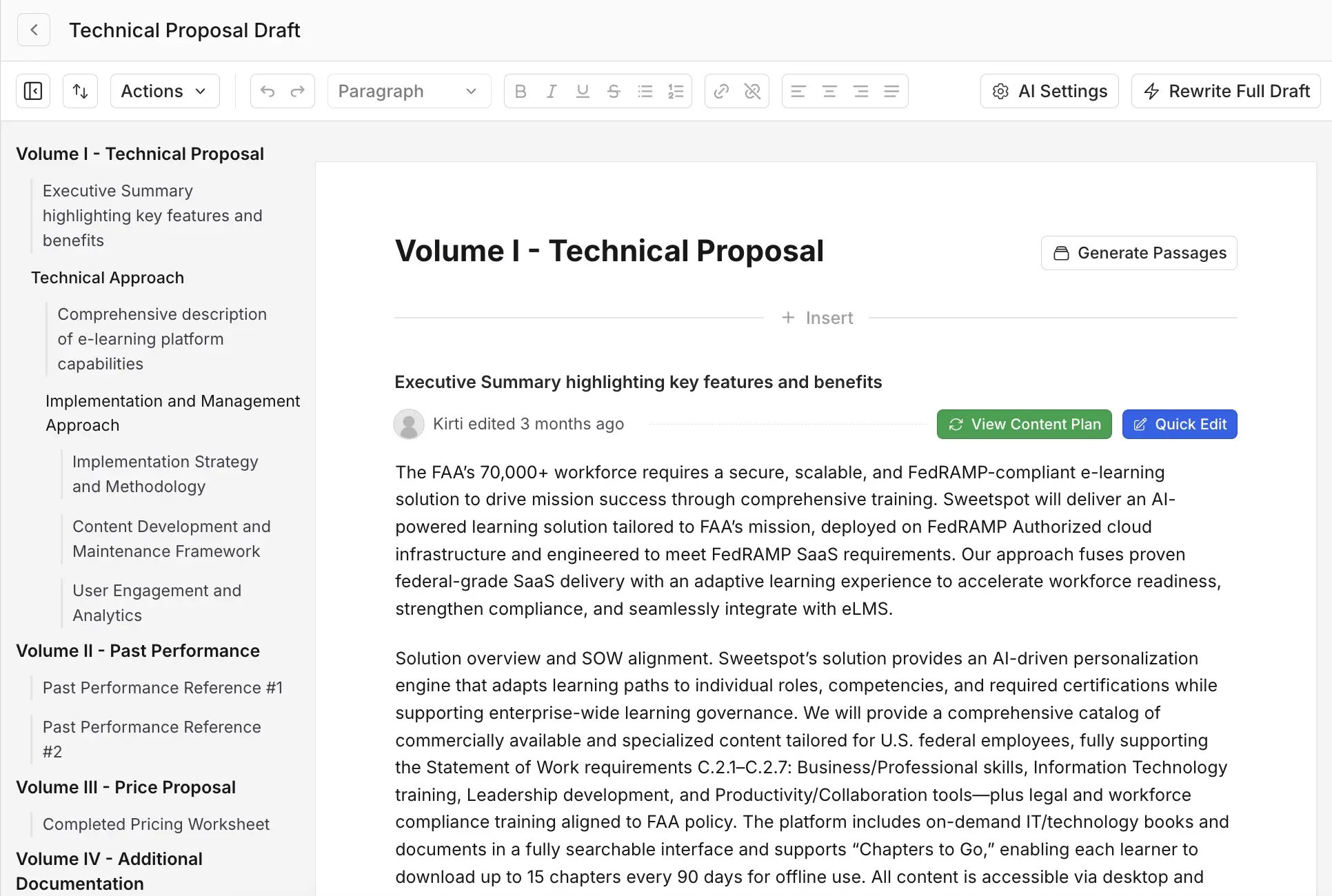
Review the outline
Sweetspot produces a compliance-mapped outline. Each passage has a content plan: what the passage should be about, what it should look like, and the specific content Sweetspot AI should reference.
Write the full draft
Once the outline looks right, click Write Full Draft For Me at the top, optionally with instructions for the draft (the more detailed, the better). Sweetspot writes a new document from the outline, pulling from your Library so content uses your actual past performance, with citations back to the solicitation documents. When the draft is ready, click Move to Sweetspot Editor to open it as a proposal document.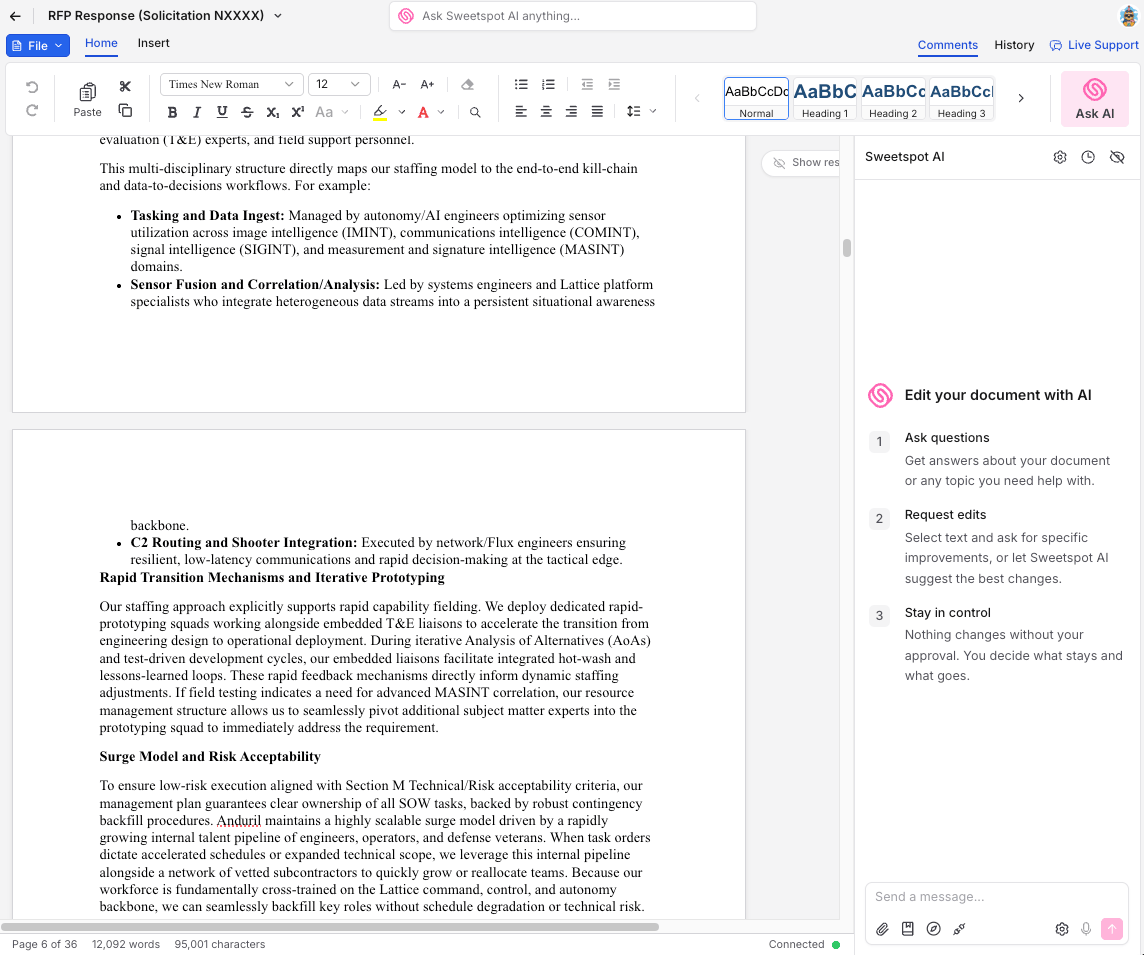
The editor
The editor works like Word: a formatting ribbon, comments, tables, search and replace, and version history. The Sweetspot AI panel on the right answers questions about the document and makes edits for you. Select text first to point the AI at a specific passage, or just describe the change you want anywhere in the draft.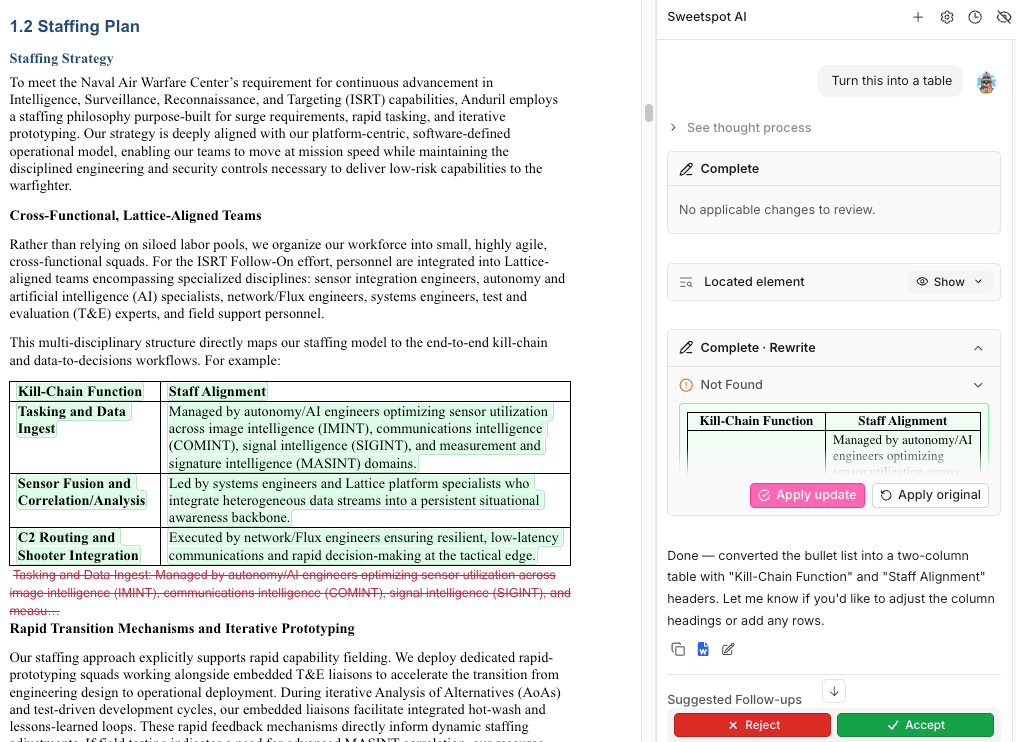
- “Make this paragraph more concise.”
- “Reference my [XYZ] past performance more here.”
- “Turn this list into a table.”
- “Define every acronym on first use in this section.”
- “Rewrite this to speak directly to the Section M evaluation criteria.”
Review and export
Run AI proposal review to catch compliance issues before your color team does, and use Review Proposal in the Requirements tab to check the draft against every requirement. To export, go to File → Export to Word, or choose Export with Word Template if you have a Word Template in your Library: your branding, headers and footers, and table of contents are applied automatically.RFI Response
RFI and sources sought responses are how you get in front of an agency before the RFP exists: they shape the requirements, signal your capability, and often determine who’s considered when the solicitation drops. They’re shorter than RFPs and come in volume, so speed matters. Sweetspot gives you two routes.Route 1: the same flow as an RFP
Use Proposal Documents exactly as you would for a full proposal: create an Automatic Proposal Draft from the RFI’s files, then review the outline, write the draft, and export. Choose this route when the RFI is very long or when several people are contributing sections.Route 2: draft it in chat with Ask AI
For most RFIs, the faster route is the pursuit’s Ask AI tab:1
Ask for the draft
Ask the AI to “Start a draft RFI for this opportunity.”
2
Answer its questions
The AI asks questions to get your context: which capabilities to emphasize, relevant past performance, whether you’re responding as a prime or sub, and anything else the response needs.
3
Review the outline, then the draft
It writes an RFI outline first, then drafts the full response, all in chat, grounded in the RFI documents and your Library. Ask for changes the same way you’d edit any chat response: “shorten section 2”, “add our [XYZ] past performance.”
4
Turn the response into a deliverable
- Create Proposal Document turns the response into a proposal document, so you can polish it in the editor like a long RFP, with tracked AI edits and Word export.
- Export to Word downloads it directly when the response is ready as is.