

Create a Saved Search
1
Create the query
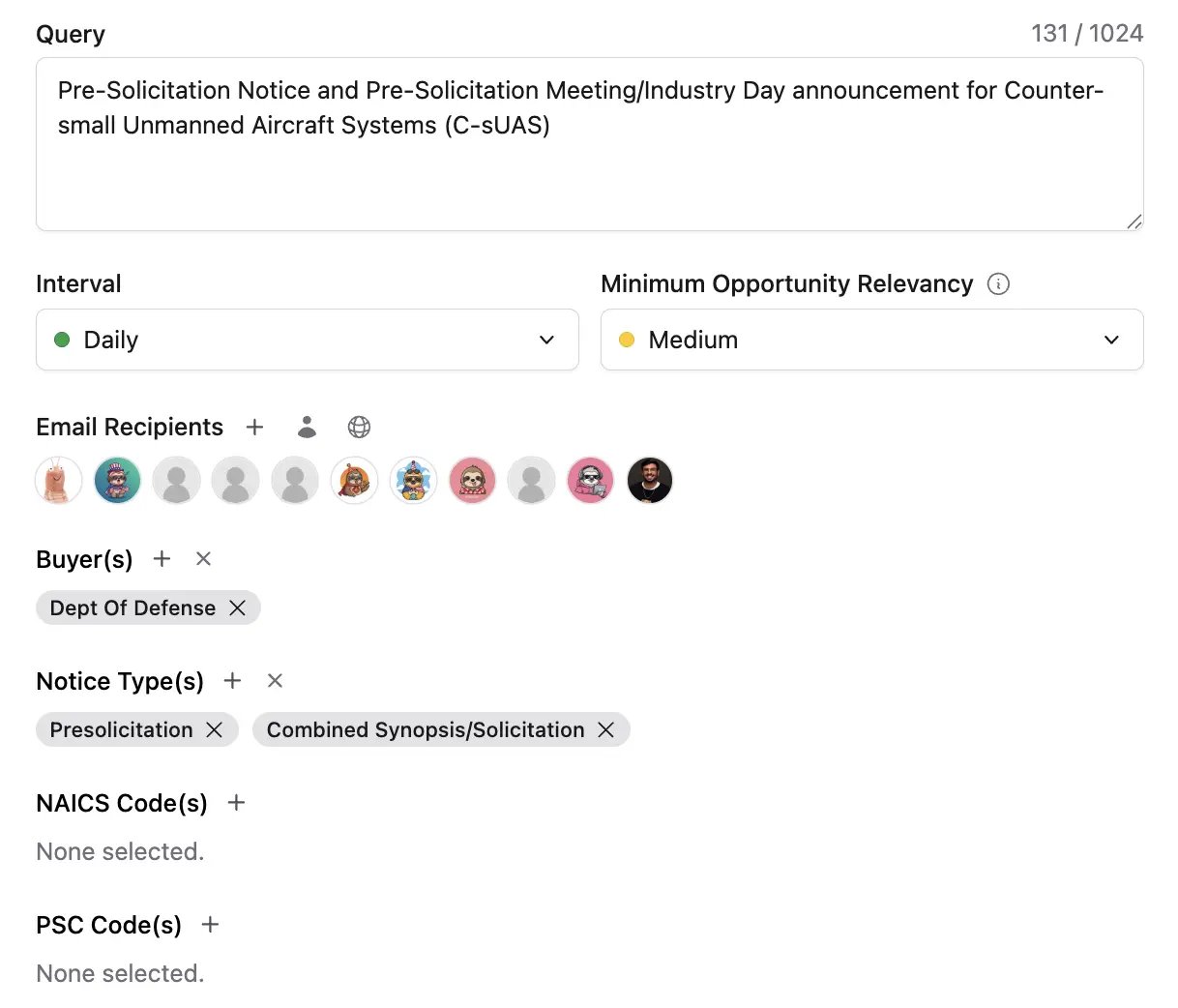
Choose the opportunity type (Federal Contracts, Federal Grants, DIBBS, SBIR/STTRs, or State & Local), enter your keyword query, and add filters like NAICS codes, set-asides, or agencies.
2
Set the alert options
- Email interval: how often Sweetspot emails you new matches.
- Minimum opportunity relevancy: how closely a match must fit before it’s included. High is the typical choice; use medium for a broader list.
- Email recipients: who on your team receives the alerts.
3
Save it
Save the search. It’s named after the query itself, so a descriptive query doubles as a recognizable name in your Saved Searches list.
4
Review new matches
Go through the notifications in your email or in Sweetspot’s Inbox as they arrive.
Tips
- Create one search per need. Narrow queries produce fewer, more relevant alerts than one broad query.
- Filter by your set-asides. If you hold certifications like 8(a), HUBZone, WOSB, or SDVOSB, add them as filters so alerts only include opportunities you qualify for.
- Delete searches you no longer need. Stale searches add alert noise.