> ## Documentation Index
> Fetch the complete documentation index at: https://docs.sweetspotgov.com/llms.txt
> Use this file to discover all available pages before exploring further.
# Quickstart
> Supercharge your capture process in under 5 minutes.
## 1. Setup your organization profile
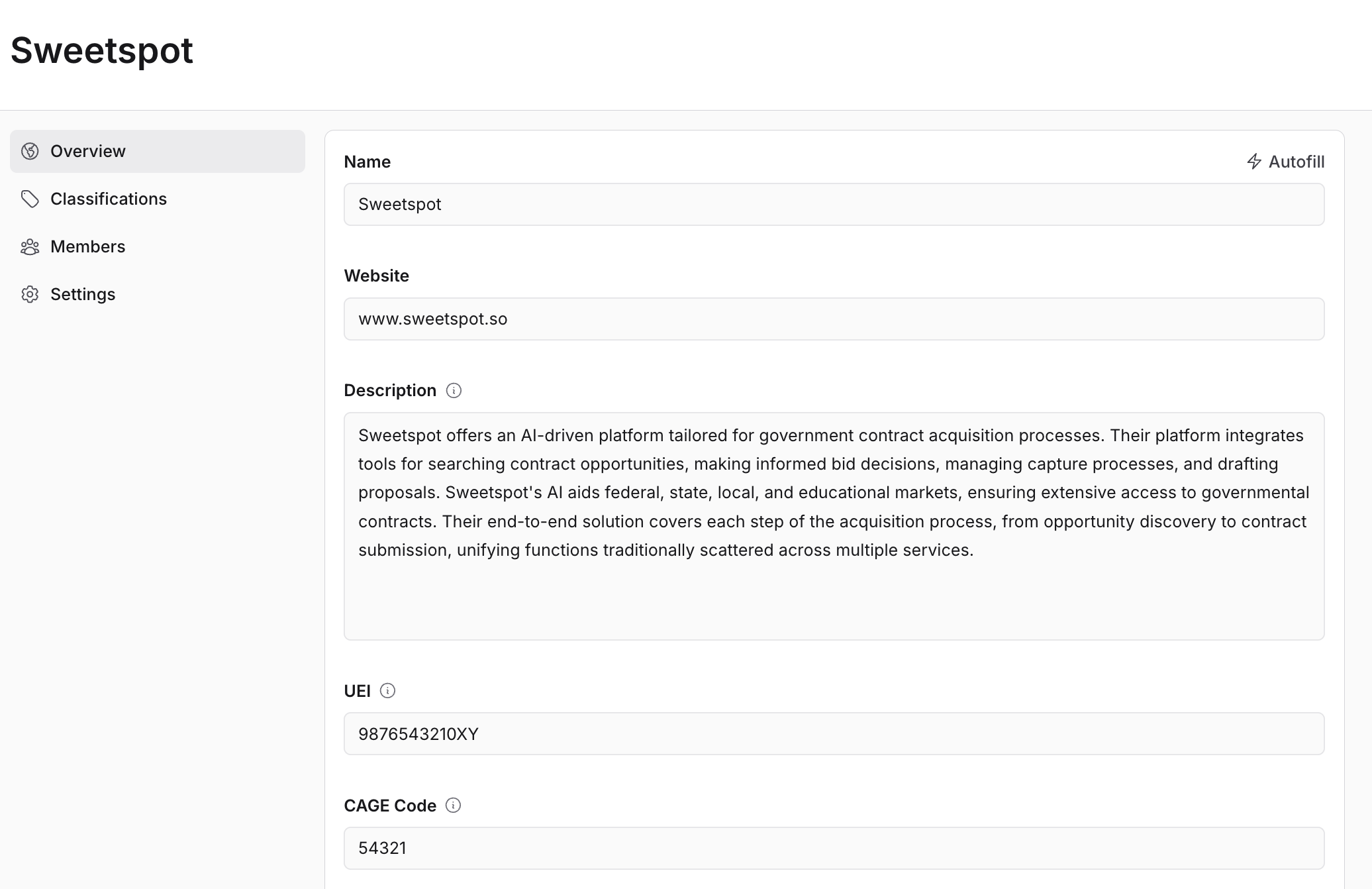
Your organization profile will be used by Sweetspot AI to match you with the most relevant opportunities and help you craft proposals with ease. To get set up, click the profile icon on the bottom of the lefthand side bar and select the `Organization Profile` tab. Here, you can input information about your organization such as a description, UEI, and CAGE code.
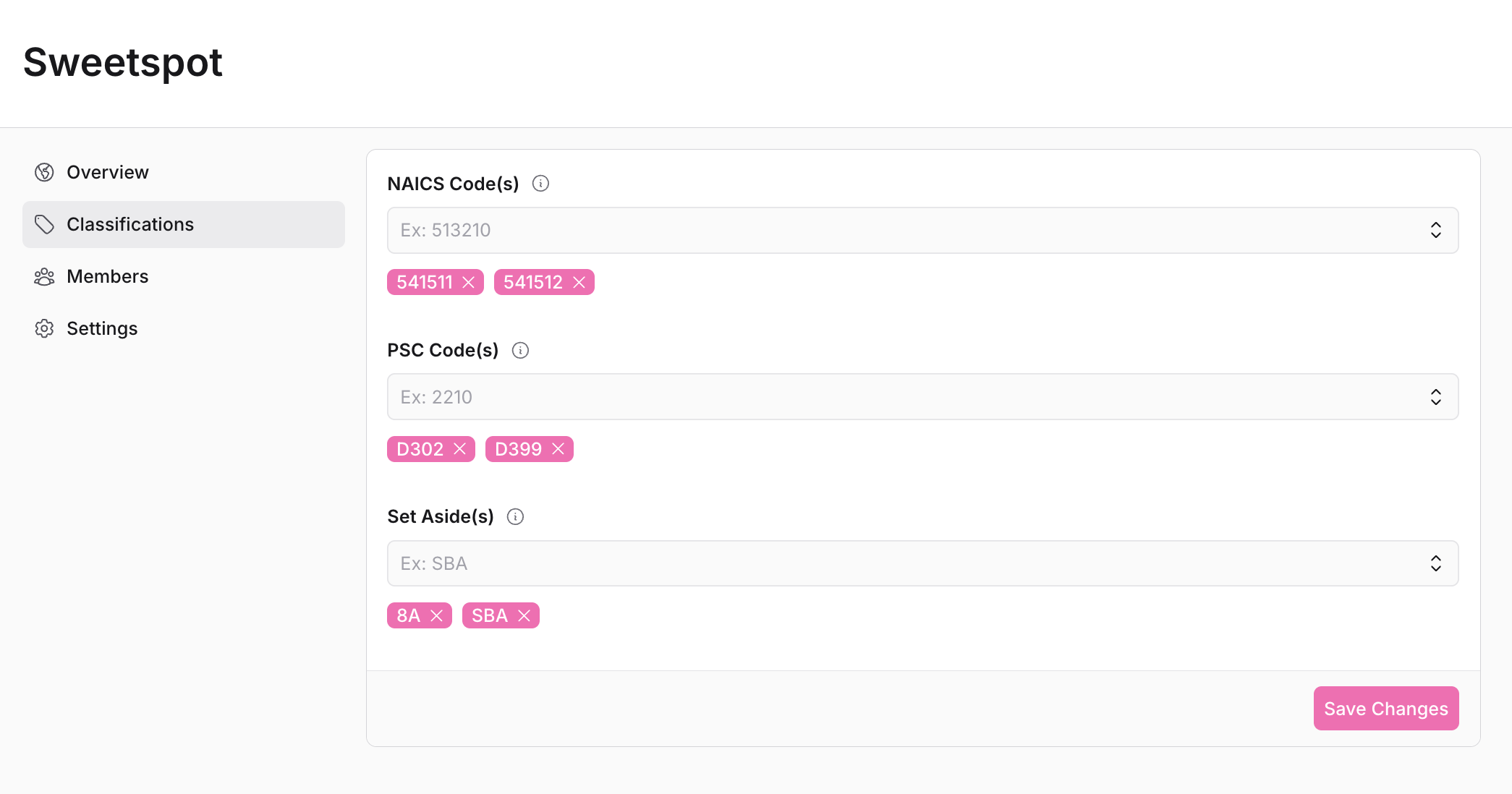
 Click on the `Classifications` tab to enter more detailed information, such as NAICS Code(s), PSC Code(s), and Set Aside Code(s).
 ## 2. Invite your teammates
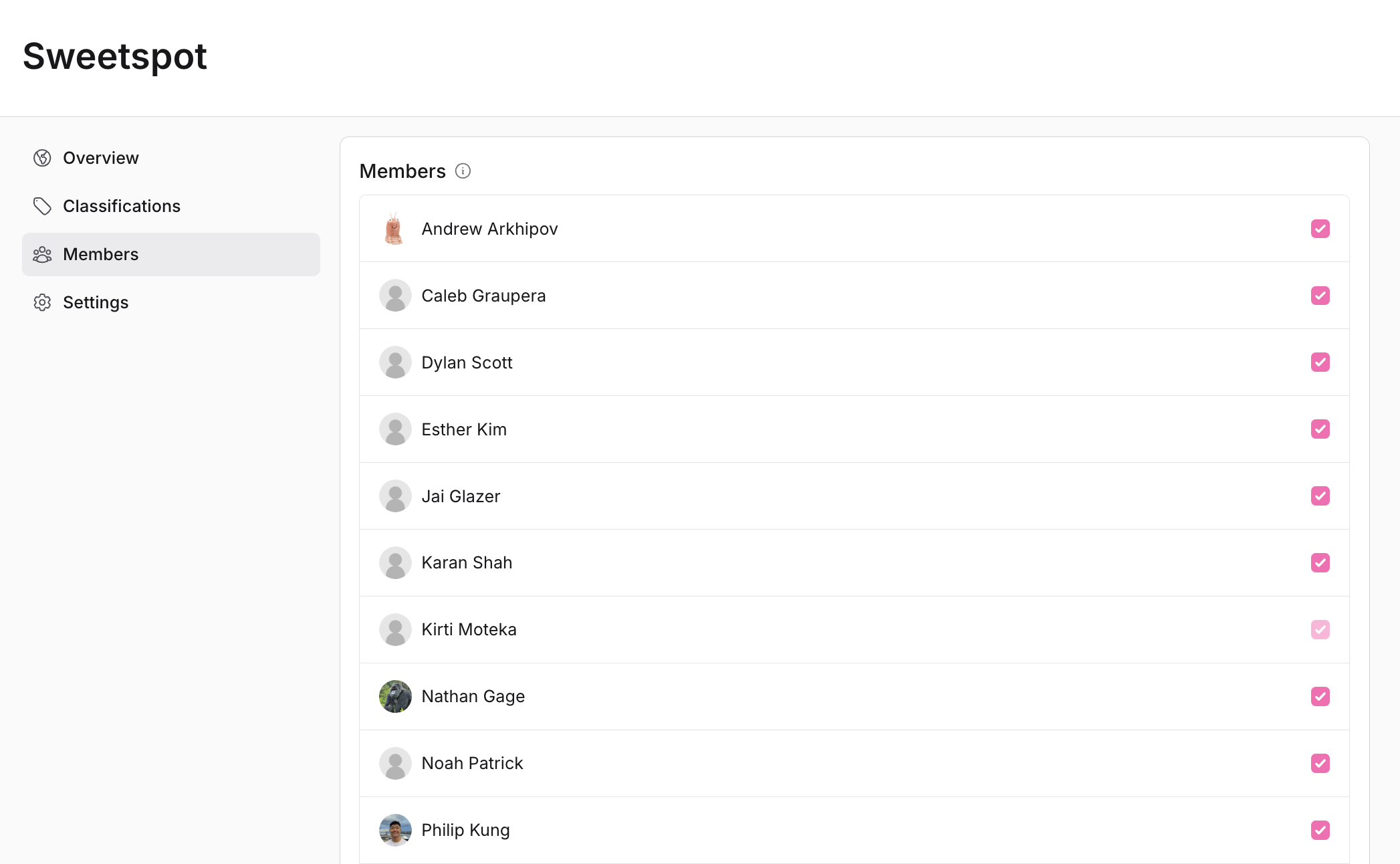
Then, navigate to the `Members` tab to send invitation emails to your teammates, so they can join your organization.
## 2. Invite your teammates
Then, navigate to the `Members` tab to send invitation emails to your teammates, so they can join your organization.
 Next, navigate to Library using the left sidebar, where you and your team members can upload relevant files.
Examples of good files to upload are capabilities statements, past responses to RFPs, and key personnel resumes. Files can be tagged and sorted in the Library according to your needs, and can be automatically transferred via existing SharePoint accounts.
Next, navigate to Library using the left sidebar, where you and your team members can upload relevant files.
Examples of good files to upload are capabilities statements, past responses to RFPs, and key personnel resumes. Files can be tagged and sorted in the Library according to your needs, and can be automatically transferred via existing SharePoint accounts.
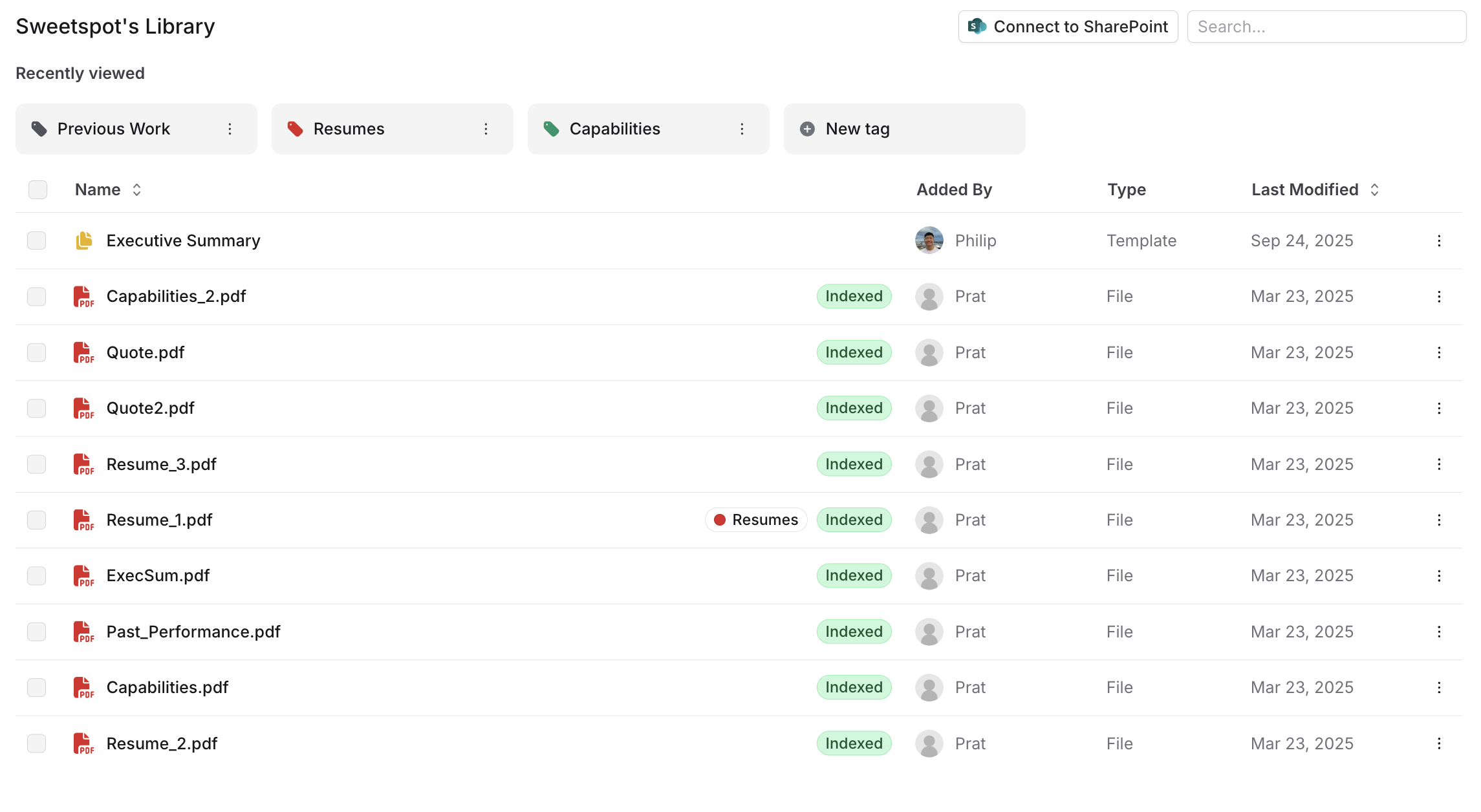 When you upload any new files, you’ll get a loading wheel. You won’t be able to access those files until the loading wheel disappears. It can take 1-2 mins to index each file, based on the size.
## 3. Search for contracts and make a bid/no bid decision
On the left sidebar, select the Search button. Select the `Use Organization Classifications` button under the Shortcuts section to automatically add your organization profile info. Filters can also be applied, such as searching by due date, posted date, buyer(s), solicitation number(s), classification codes, and more.
When you upload any new files, you’ll get a loading wheel. You won’t be able to access those files until the loading wheel disappears. It can take 1-2 mins to index each file, based on the size.
## 3. Search for contracts and make a bid/no bid decision
On the left sidebar, select the Search button. Select the `Use Organization Classifications` button under the Shortcuts section to automatically add your organization profile info. Filters can also be applied, such as searching by due date, posted date, buyer(s), solicitation number(s), classification codes, and more.
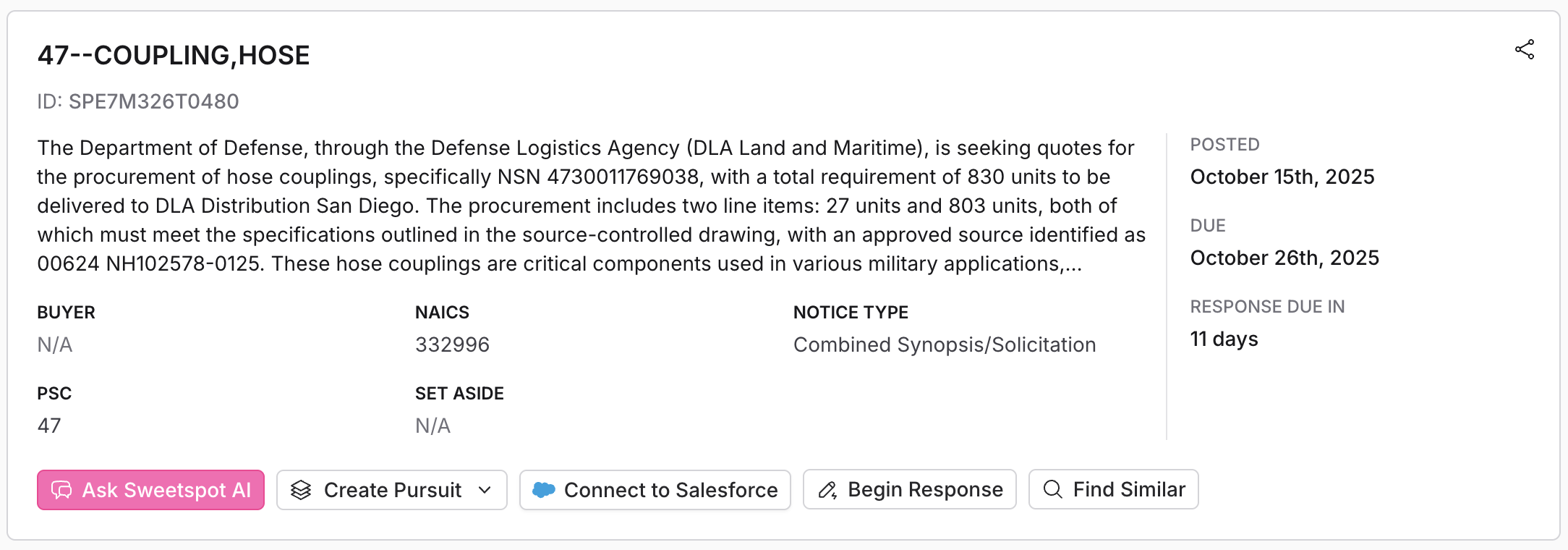
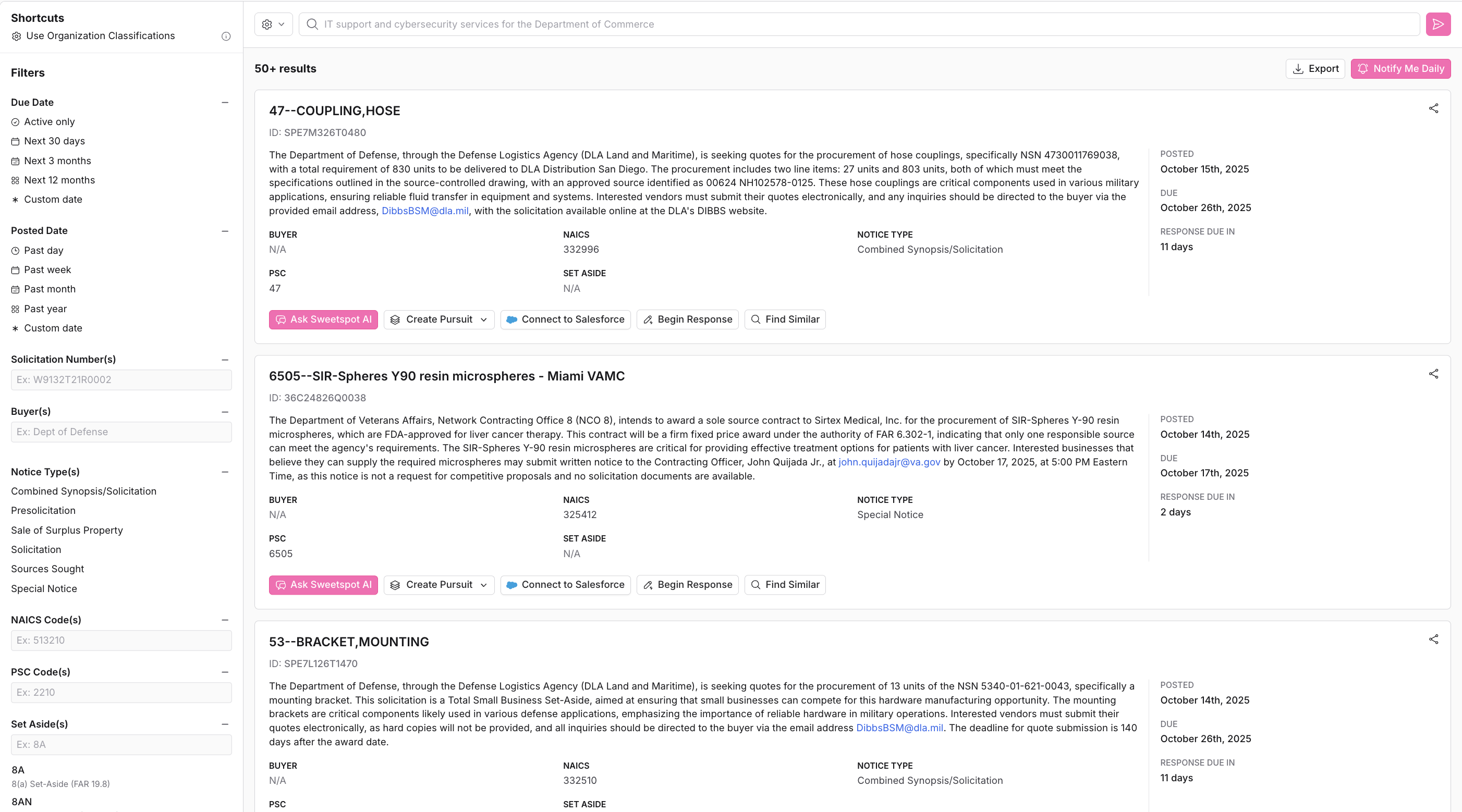 Type in your query into the search bar and explore the results. Click on any of the search results in order to get more information about the opportunity. You can even press the `Ask Sweetspot AI` button in order to ask our AI questions about the contract, or click on `Find Similar` to guide other relevant searches.
Once you decide that you want to bid on the contract, click the `Create Pursuit` button.
Type in your query into the search bar and explore the results. Click on any of the search results in order to get more information about the opportunity. You can even press the `Ask Sweetspot AI` button in order to ask our AI questions about the contract, or click on `Find Similar` to guide other relevant searches.
Once you decide that you want to bid on the contract, click the `Create Pursuit` button.
 Click the `Notify Me` button on the search results page in order to receive email notifications every time a new contract that matches your query gets released.
## 4. Ask Questions
Click the `Ask Sweetspot AI` button to open up Sweetspot AI's chat function. Sweetspot AI lets you chat directly about opportunity documents, PDFs, and other materials.
Click the `Notify Me` button on the search results page in order to receive email notifications every time a new contract that matches your query gets released.
## 4. Ask Questions
Click the `Ask Sweetspot AI` button to open up Sweetspot AI's chat function. Sweetspot AI lets you chat directly about opportunity documents, PDFs, and other materials.
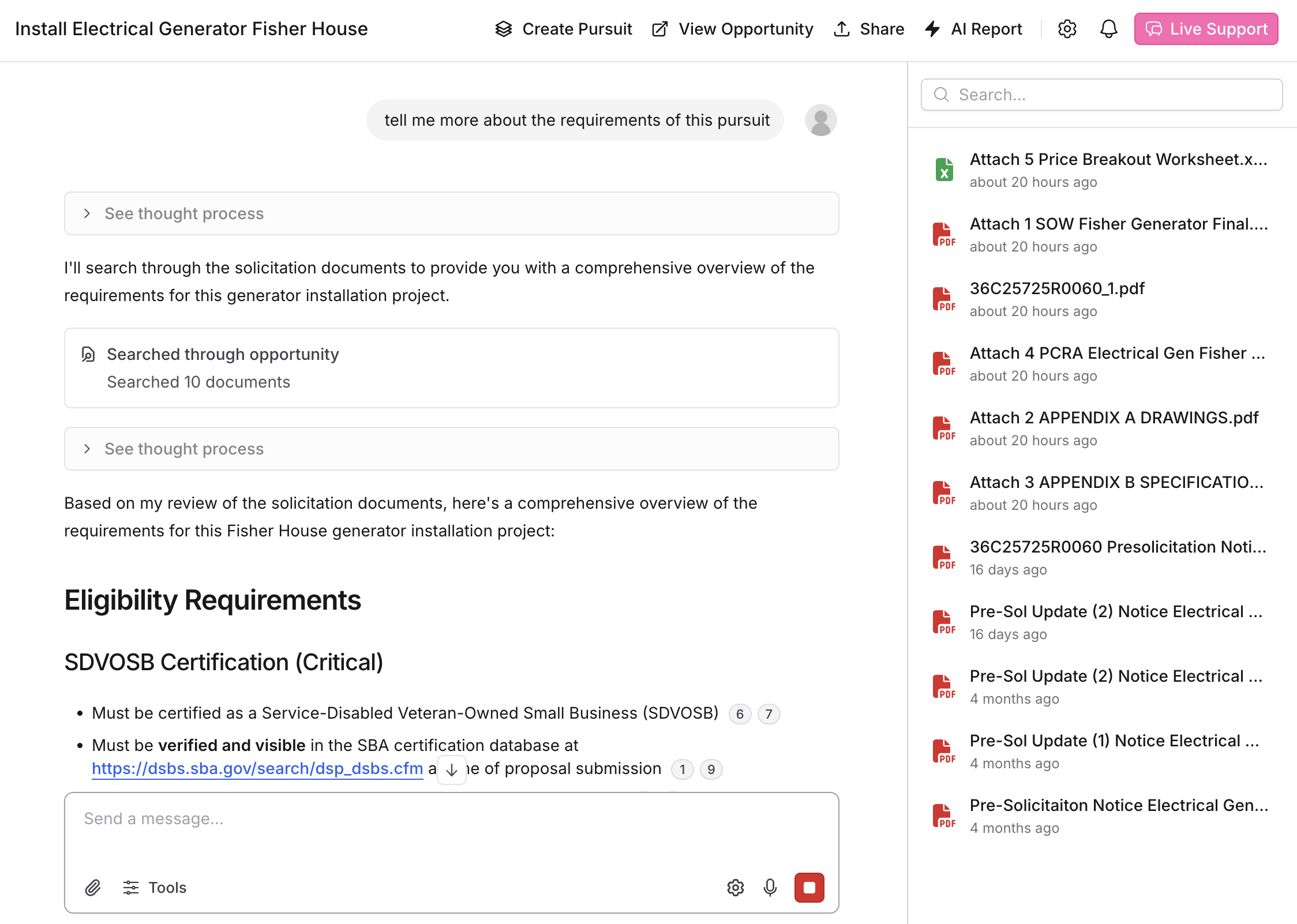 Ask Sweetspot AI facilitates direct interaction with any opportunity, including the solicitation files provided by the buyer. This allows users to ask questions and receive contextual information from the content, streamlining the review and analysis process. Sweetspot AI can also be accessed from the left sidebar, where you can ask broader questions about opportunities, research, and macroeconomic analysis.
Click on the `Live Support` button at the top right corner of any page to communicate any concerns or questions with the Sweetspot team.
## 5. Manage the pursuit
From the left sidebar, select the Pursuits button. Click the name of the pursuit you just added.
Here, you can manage all aspects of the pursuit such as creating and assigning tasks to teammates, viewing recent activity, viewing pursuit files, checking compliance items, and responding to the pursuit itself. Pursuits can also be imported manually into Sweetspot, or through an existing Salesforce account.
Ask Sweetspot AI facilitates direct interaction with any opportunity, including the solicitation files provided by the buyer. This allows users to ask questions and receive contextual information from the content, streamlining the review and analysis process. Sweetspot AI can also be accessed from the left sidebar, where you can ask broader questions about opportunities, research, and macroeconomic analysis.
Click on the `Live Support` button at the top right corner of any page to communicate any concerns or questions with the Sweetspot team.
## 5. Manage the pursuit
From the left sidebar, select the Pursuits button. Click the name of the pursuit you just added.
Here, you can manage all aspects of the pursuit such as creating and assigning tasks to teammates, viewing recent activity, viewing pursuit files, checking compliance items, and responding to the pursuit itself. Pursuits can also be imported manually into Sweetspot, or through an existing Salesforce account.
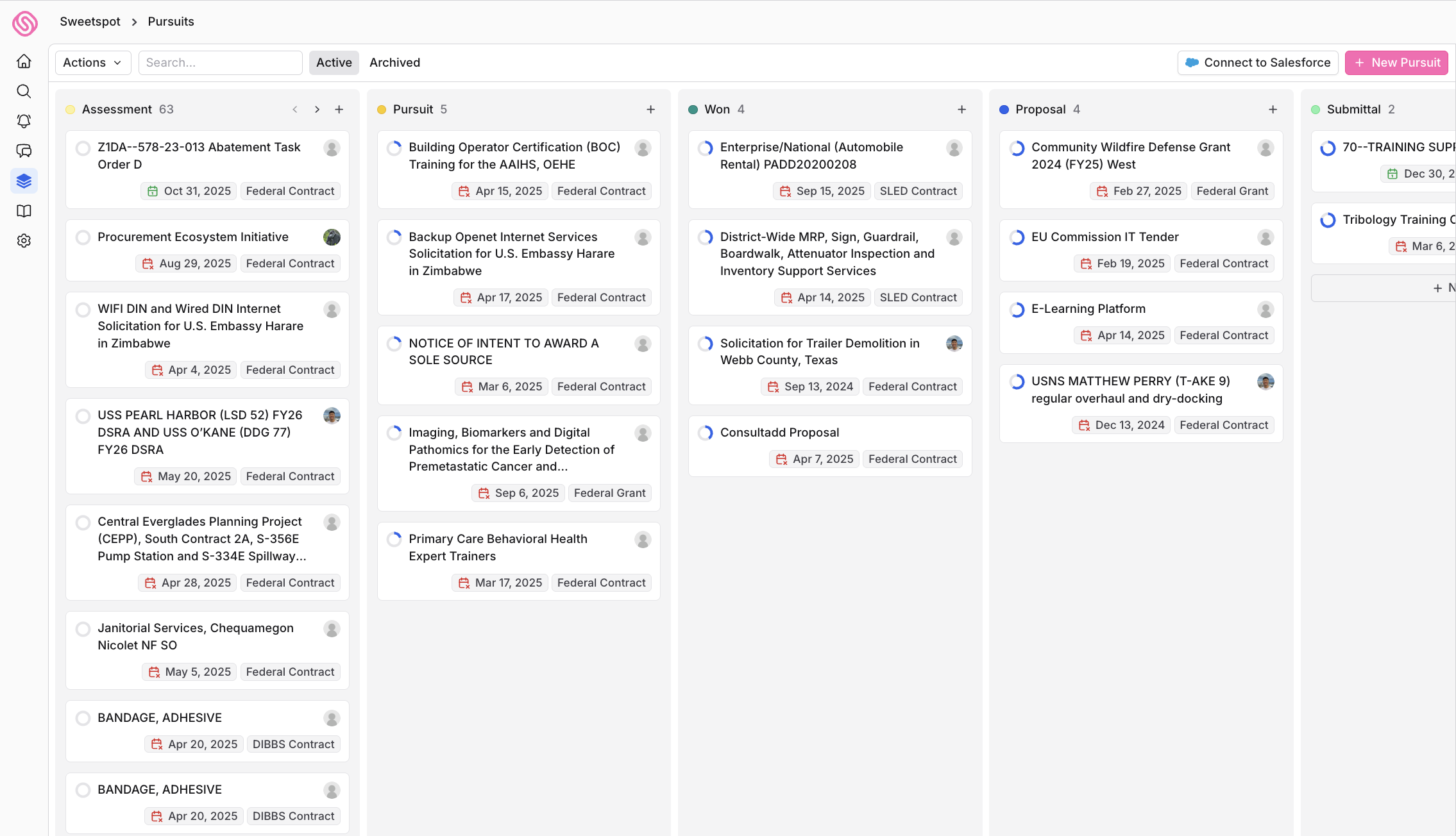
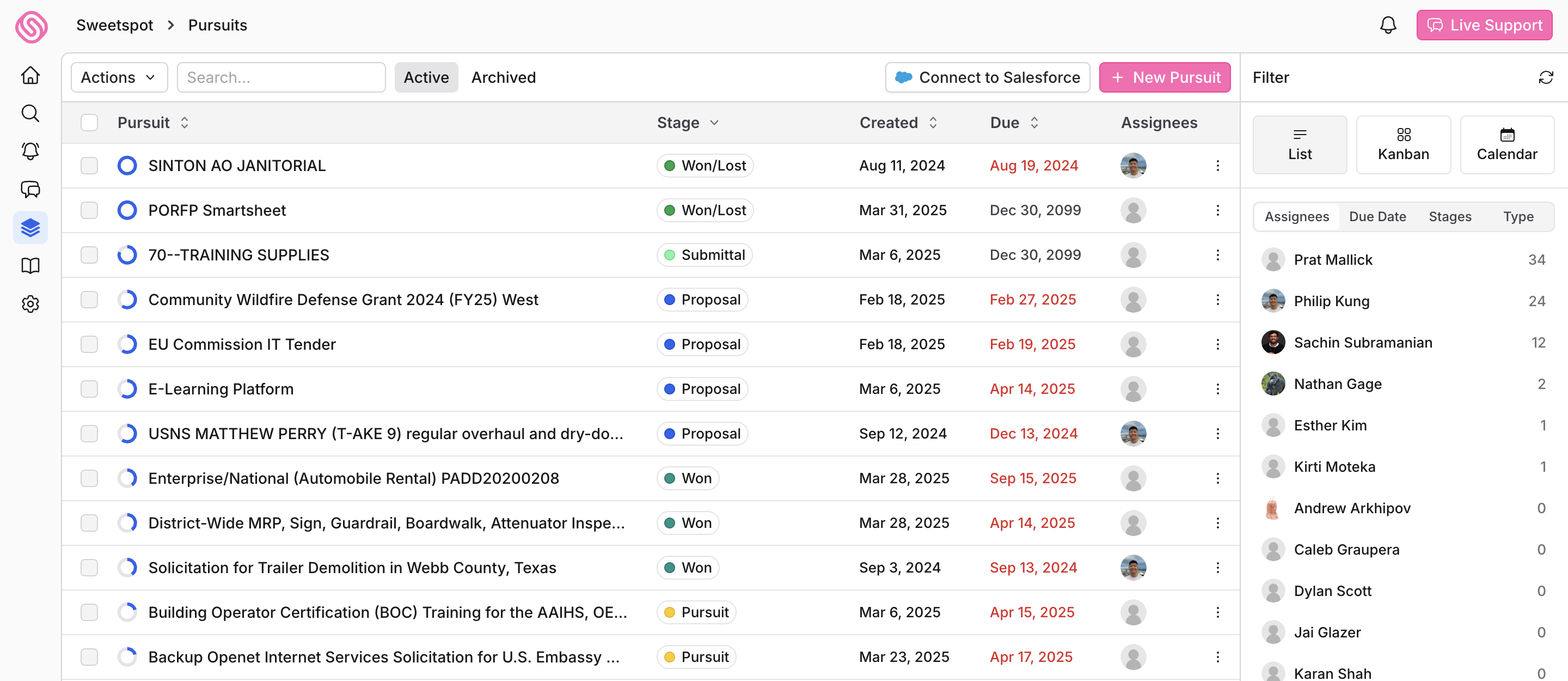 View assignees, due dates, status, and task priority on the right, and you can filter those in a list, kanban, or calendar view.
 On the overview page, click the `+ Quick Create` button to get started. You can add files, create tasks, store notes, fill forms, begin generating a response with AI. From the status tracker, update the stage that the pursuit is in as you progess.
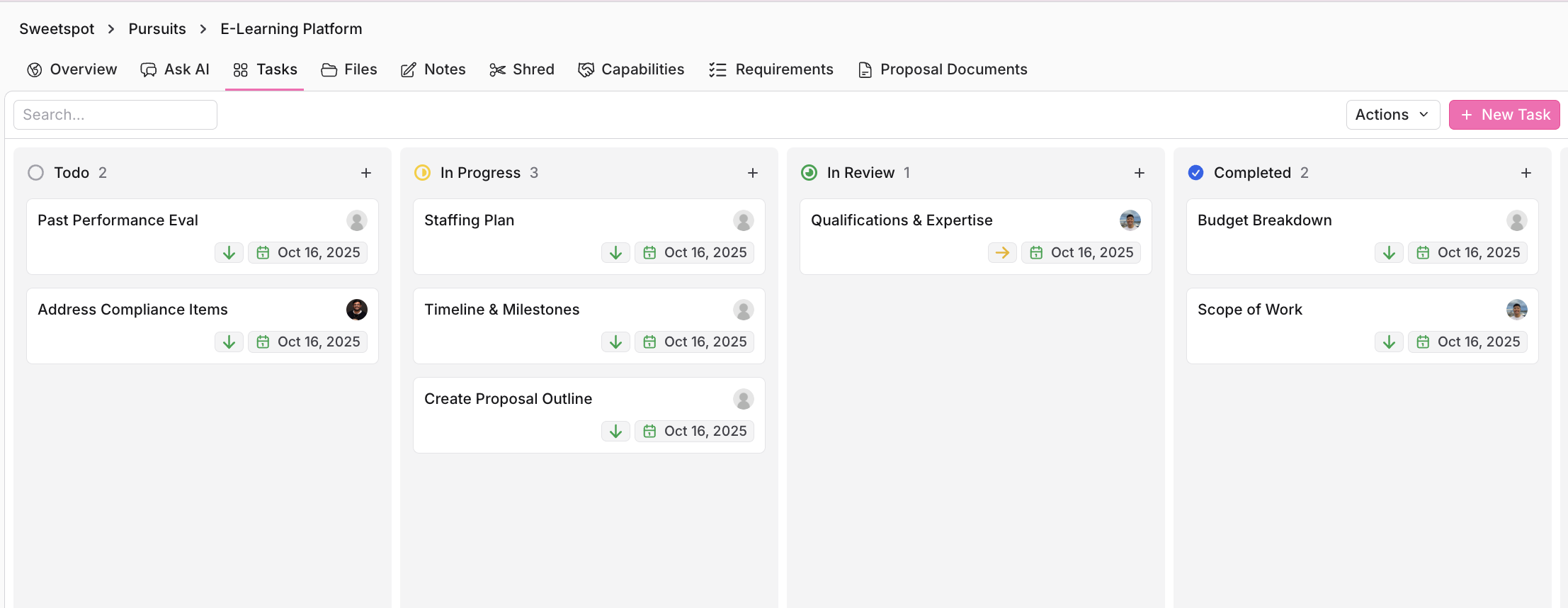
In the tasks tab, you can create, manage, and assign individual tasks. You can use this section to comment on progress within specific tasks for clarity, and collaborate with teammates throughout the pursuit's lifecycle. As you work through each task, you can drag and drop the task card to update its status.
On the overview page, click the `+ Quick Create` button to get started. You can add files, create tasks, store notes, fill forms, begin generating a response with AI. From the status tracker, update the stage that the pursuit is in as you progess.
In the tasks tab, you can create, manage, and assign individual tasks. You can use this section to comment on progress within specific tasks for clarity, and collaborate with teammates throughout the pursuit's lifecycle. As you work through each task, you can drag and drop the task card to update its status.
 ## 6. Draft a response
Navigate to the proposal documents tab on the pursuit manager. To get started, create a document by clicking the `+ New` button, which can generate a new document using AI, provide a blank document, or use existing bid templates from your organization to create a custom document. You can also fill out a required form document here. After creating the document, click into it to view the text editor.
## 6. Draft a response
Navigate to the proposal documents tab on the pursuit manager. To get started, create a document by clicking the `+ New` button, which can generate a new document using AI, provide a blank document, or use existing bid templates from your organization to create a custom document. You can also fill out a required form document here. After creating the document, click into it to view the text editor.
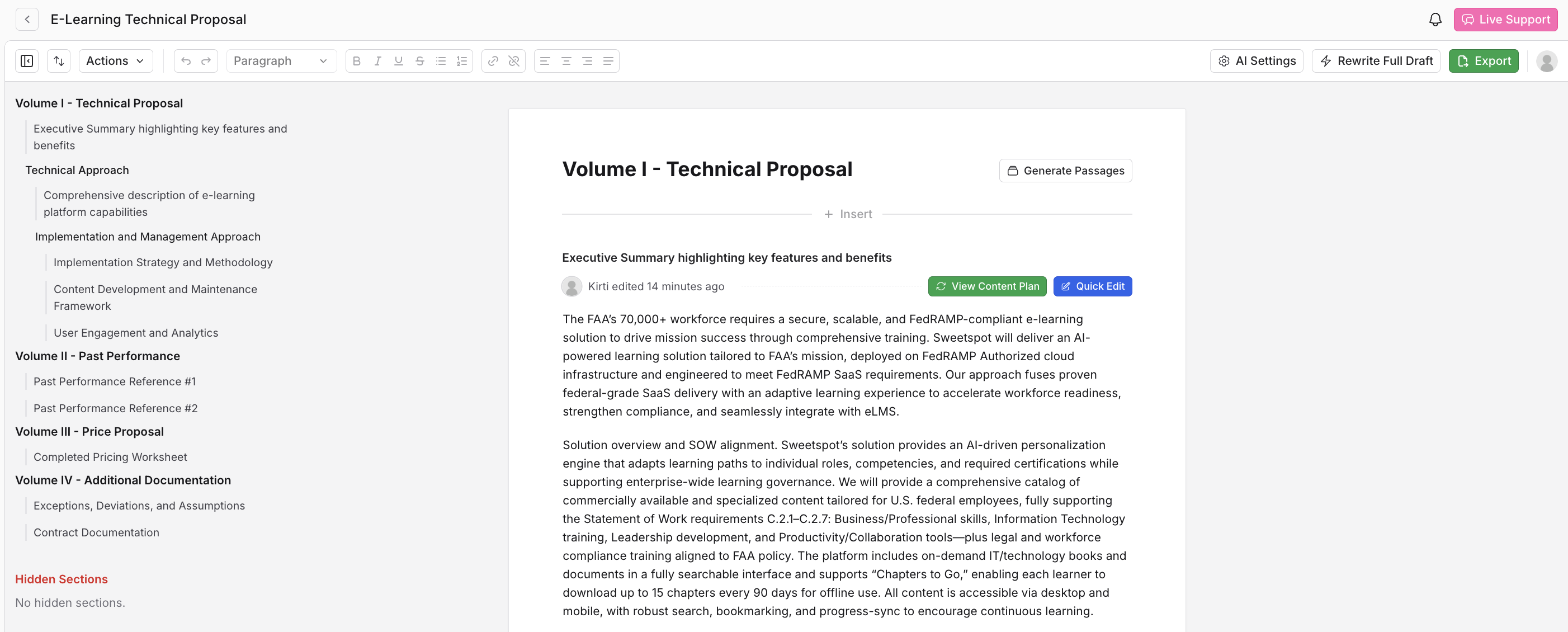 This is where you can leverage Sweetspot's AI powered features in order to respond to the RFx. Our AI ingests your organization profile that you filled out from Step 1 in order to help you generate responses to each section from the RFx, which you can also use on the right-hand side of your screen.
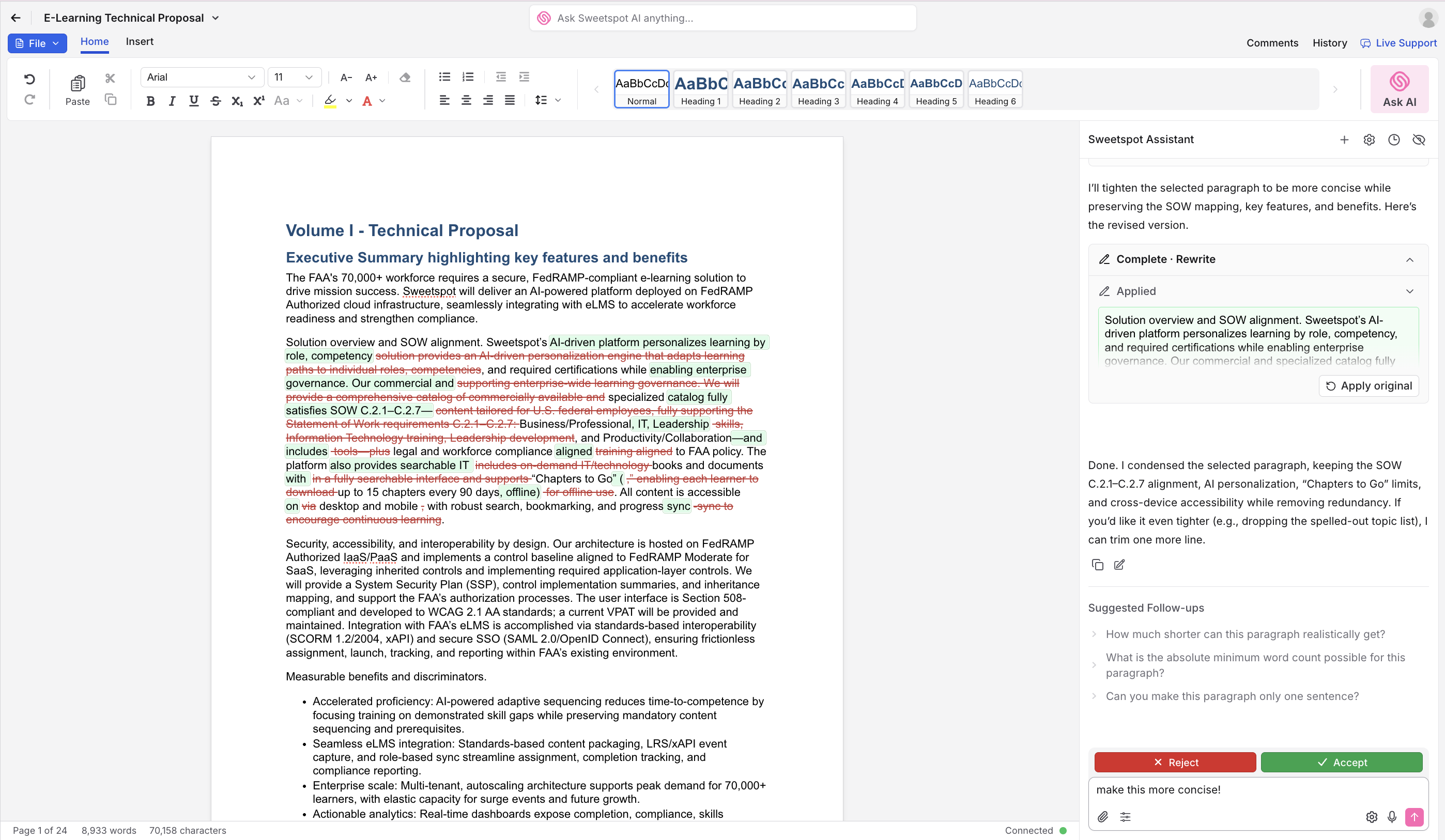
To make more intuitive, specific edits go to the Sweetspot Editor, which is setup like a Word Document Editor. Click on specific texts for more personalized edits, and chat with Sweetspot AI in the editor to answer any questions.
This is where you can leverage Sweetspot's AI powered features in order to respond to the RFx. Our AI ingests your organization profile that you filled out from Step 1 in order to help you generate responses to each section from the RFx, which you can also use on the right-hand side of your screen.
To make more intuitive, specific edits go to the Sweetspot Editor, which is setup like a Word Document Editor. Click on specific texts for more personalized edits, and chat with Sweetspot AI in the editor to answer any questions.
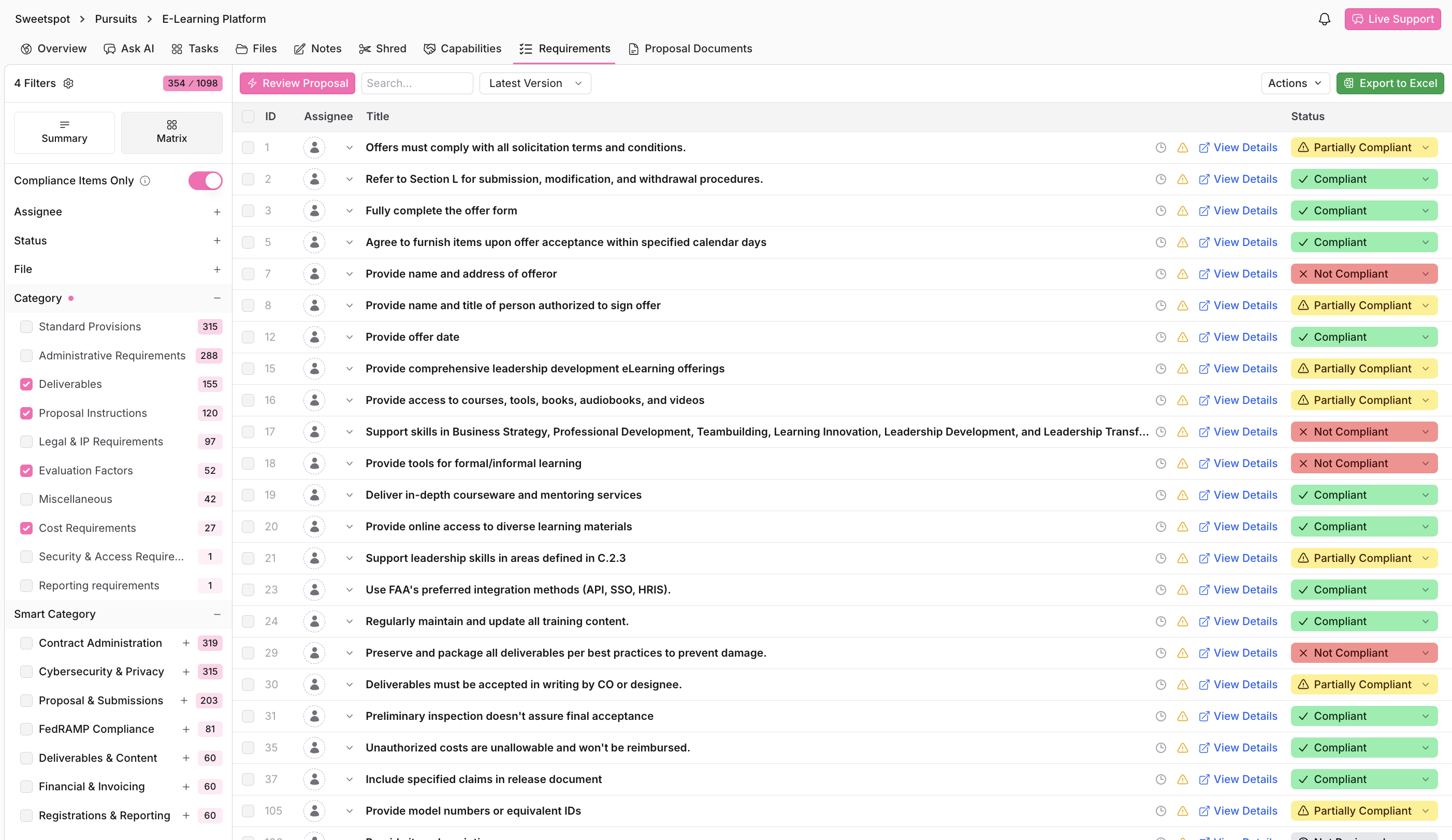
 Our AI also looks at the pursuit documents and automatically generates a compliance matrix, so that you know exactly what to address in your proposal. Click the requirements tab on the pursuit manager bar at the top of your screen in order to view the compliance items as you're drafting the proposal.