> ## Documentation Index
> Fetch the complete documentation index at: https://docs.sweetspotgov.com/llms.txt
> Use this file to discover all available pages before exploring further.
# The Pursuit Workspace
> Everything about one opportunity in one place: files, requirements, drafts, and AI
Every pursuit has its own workspace. Each tab handles one part of the capture-to-proposal flow: understand the solicitation, decide and plan, prove compliance, and draft the response.
## Overview
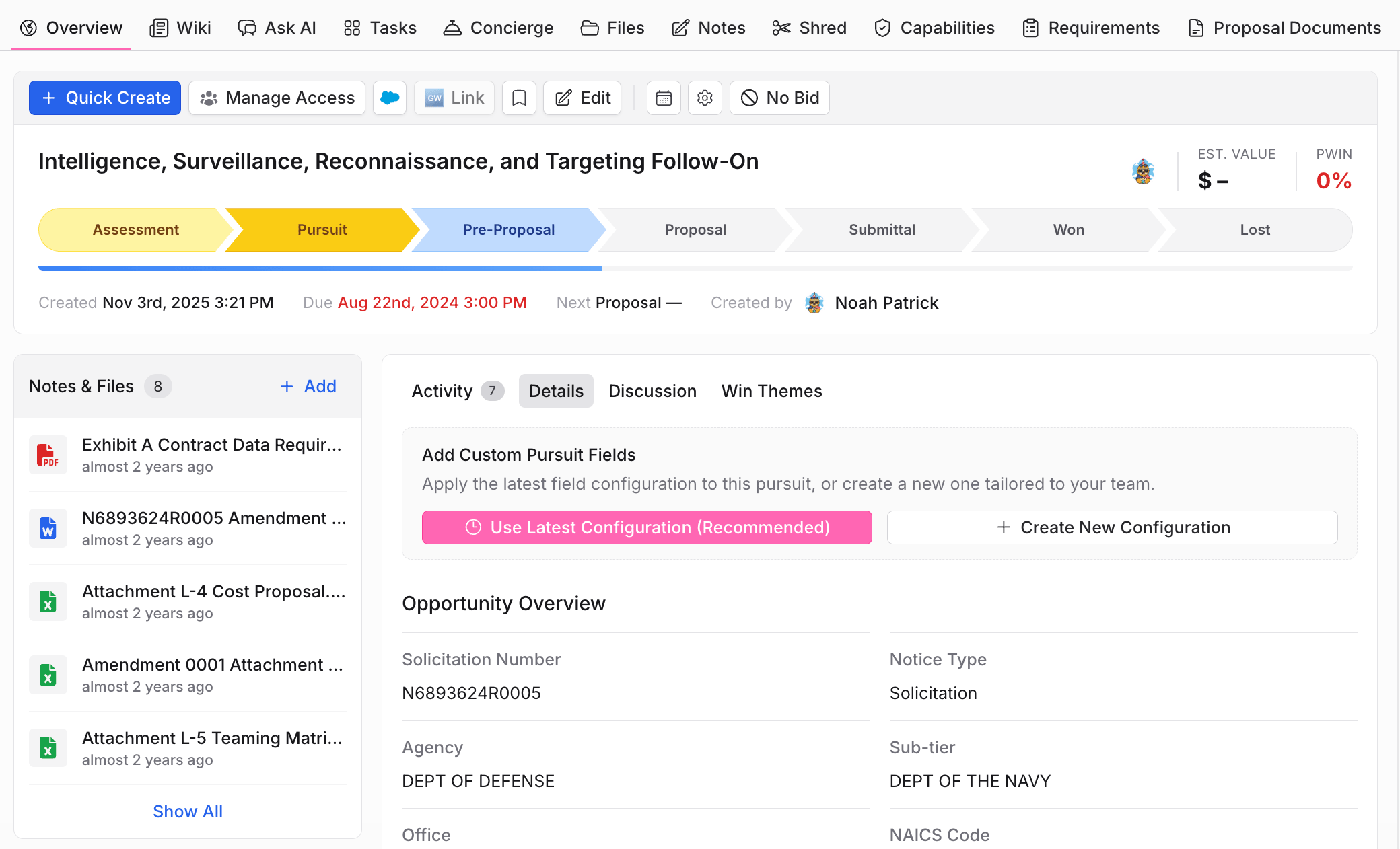
The Overview is where you check where a pursuit stands. It shows:
* The **stage pipeline** (for example Assessment → Pursuit → Pre-Proposal → Proposal → Submittal → Won/Lost), estimated value, and PWin
* Opportunity details pulled from the solicitation: solicitation number, agency, office, NAICS, and notice type
* Notes and files, plus tabs for activity, discussion, and win themes
* Quick actions: edit, manage access, link to Salesforce or GovWin, and record a **No Bid**
Use it as the starting point for status checks and stand-ups: one look tells you the stage, the deadline, and what's changed recently.
 ## Wiki
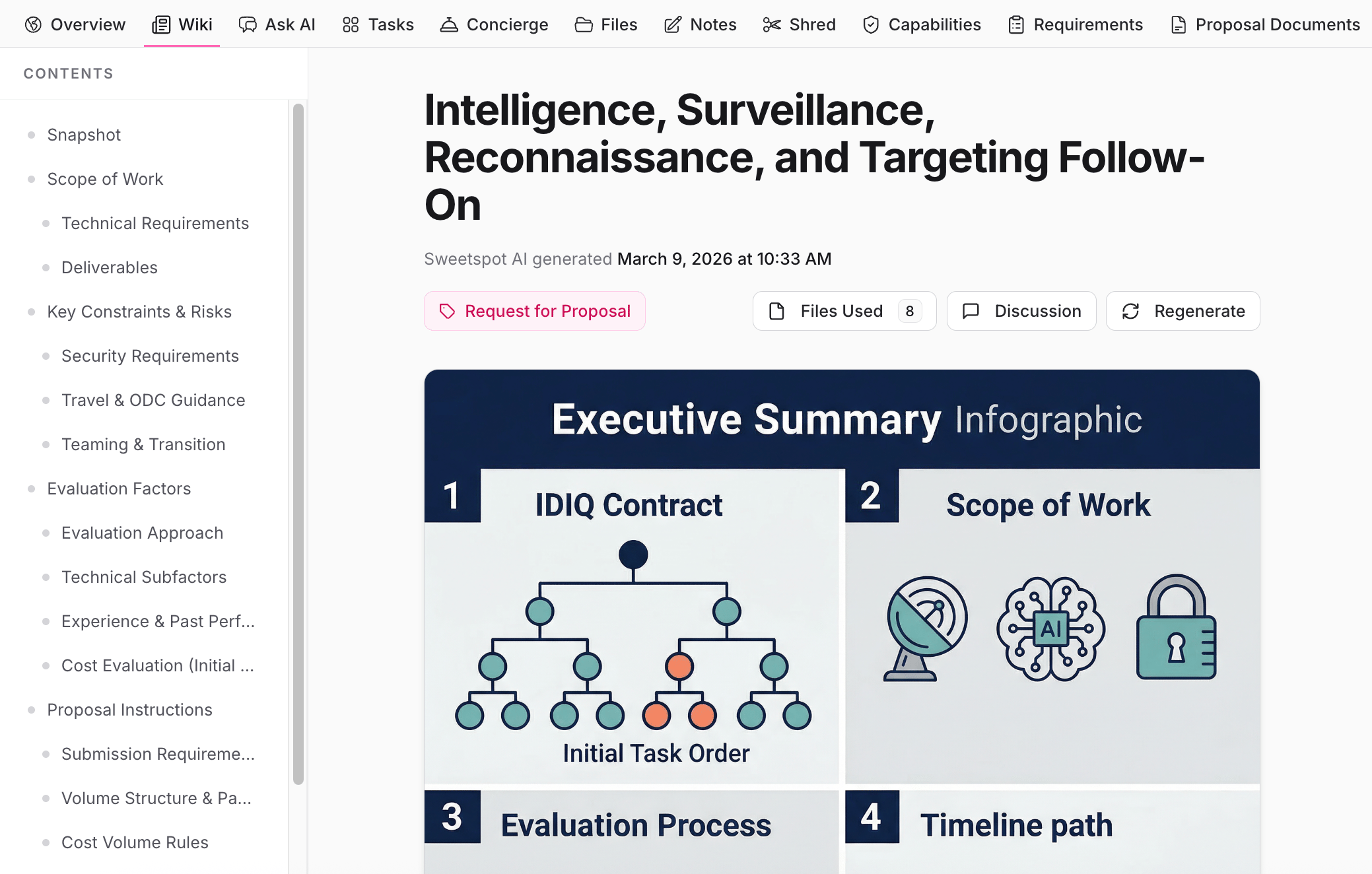
The Wiki is an AI-generated snapshot of everything in the solicitation, so anyone on the team can get up to speed without reading 300 pages of RFP. Sweetspot builds it from the pursuit's files and organizes it into sections like scope of work, technical requirements, key constraints and risks, evaluation factors, and proposal instructions.
* Every page lists the **files used**, so you can verify claims against the source
* **Regenerate** rebuilds the wiki when amendments or new documents arrive
Use the Wiki at the start of a pursuit for bid/no-bid context, and when new teammates join mid-pursuit. For your own notes and strategy, use [Notes](#notes).
## Wiki
The Wiki is an AI-generated snapshot of everything in the solicitation, so anyone on the team can get up to speed without reading 300 pages of RFP. Sweetspot builds it from the pursuit's files and organizes it into sections like scope of work, technical requirements, key constraints and risks, evaluation factors, and proposal instructions.
* Every page lists the **files used**, so you can verify claims against the source
* **Regenerate** rebuilds the wiki when amendments or new documents arrive
Use the Wiki at the start of a pursuit for bid/no-bid context, and when new teammates join mid-pursuit. For your own notes and strategy, use [Notes](#notes).
 ## Ask AI
A chat scoped to this pursuit. The AI sees the pursuit's files, requirements, and notes, and answers with citations. Suggested Playbooks and the workspace rail (pursuit files, Library files, citations) sit alongside the conversation. See [Ask AI](/ai/ask-ai).
Use it for questions the Wiki doesn't answer directly: "What are the Section L page limits?", "Does the SOW require a SCIF?", "Compare amendment 2 against the original deadline."
## Ask AI
A chat scoped to this pursuit. The AI sees the pursuit's files, requirements, and notes, and answers with citations. Suggested Playbooks and the workspace rail (pursuit files, Library files, citations) sit alongside the conversation. See [Ask AI](/ai/ask-ai).
Use it for questions the Wiki doesn't answer directly: "What are the Section L page limits?", "Does the SOW require a SCIF?", "Compare amendment 2 against the original deadline."
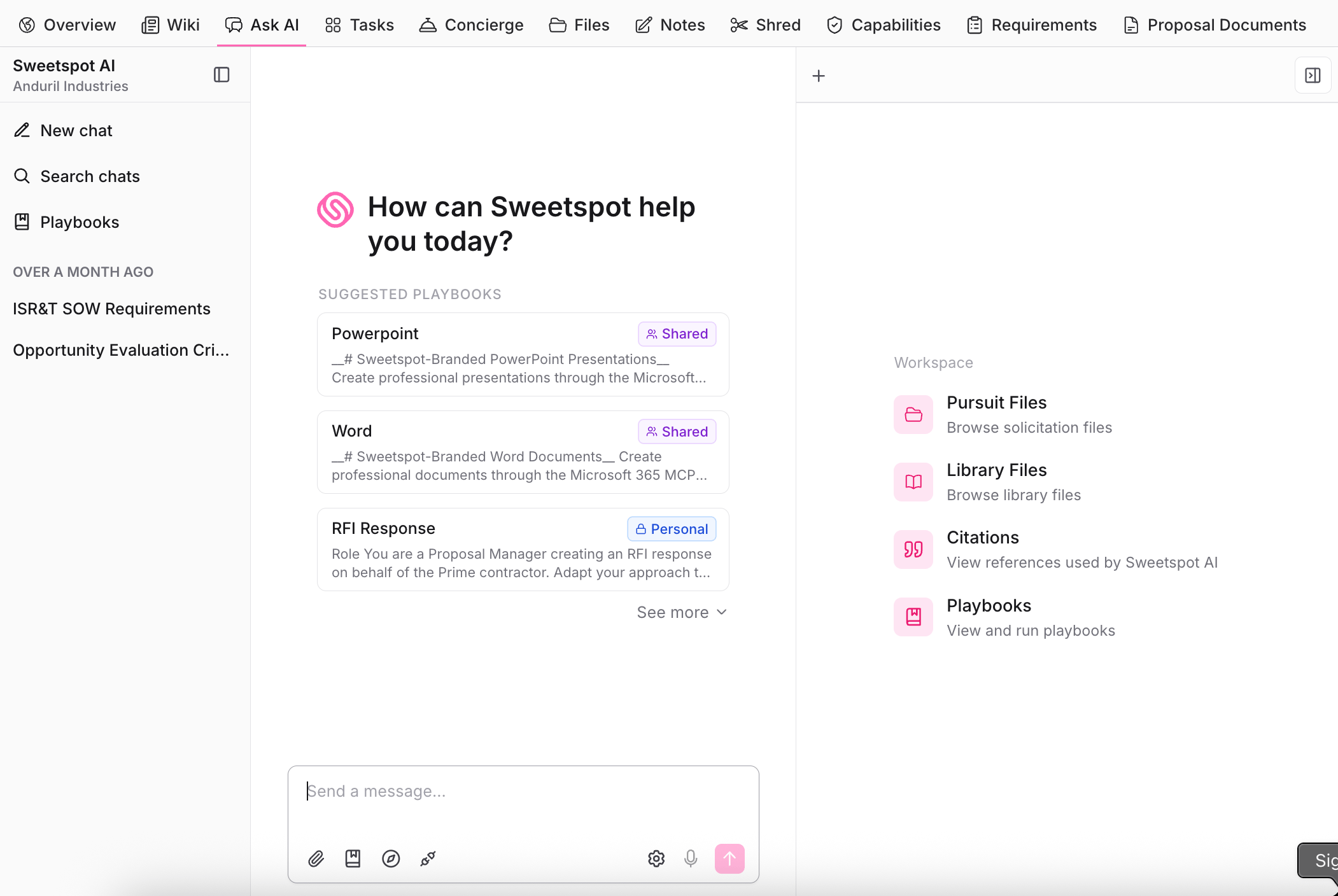 Pursuit chats are different from the **Ask AI** tab in the left sidebar. A chat started here has all the context from the pursuit's files, and it lives in this tab: it won't appear in the broader Ask AI chat list. If you're looking for a conversation about a pursuit, open that pursuit's Ask AI tab.
## Tasks
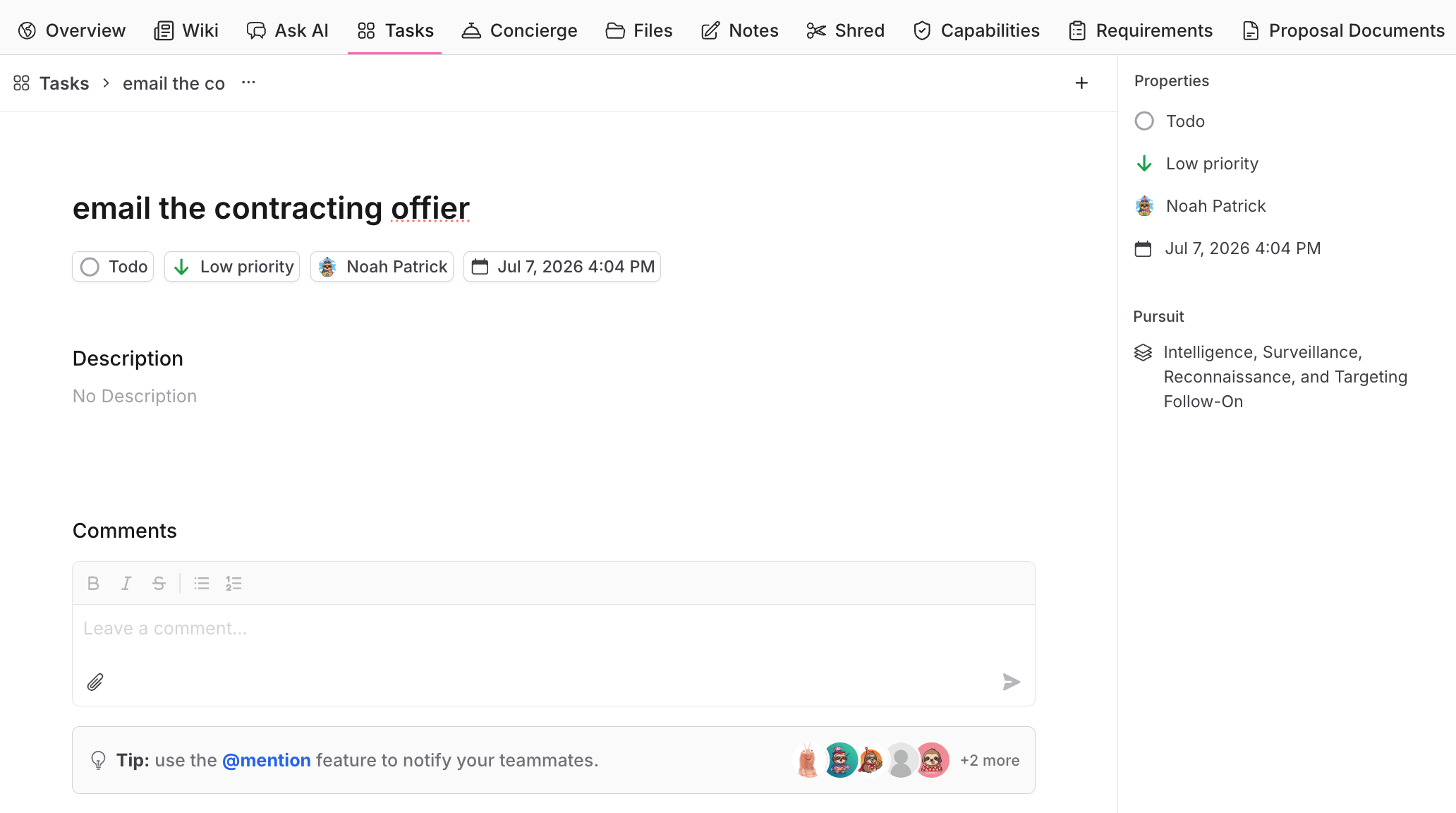
Task tracking for the pursuit, so ownership and deadlines are explicit. Each task has a status, priority, assignee, and due date, plus comments with @mentions to notify teammates. The calendar view lays every deadline out by date.
Use Tasks to run the proposal schedule: color team dates, volume owners, question submission deadlines, and the small to-dos that fall through the cracks in email.
Pursuit chats are different from the **Ask AI** tab in the left sidebar. A chat started here has all the context from the pursuit's files, and it lives in this tab: it won't appear in the broader Ask AI chat list. If you're looking for a conversation about a pursuit, open that pursuit's Ask AI tab.
## Tasks
Task tracking for the pursuit, so ownership and deadlines are explicit. Each task has a status, priority, assignee, and due date, plus comments with @mentions to notify teammates. The calendar view lays every deadline out by date.
Use Tasks to run the proposal schedule: color team dates, volume owners, question submission deadlines, and the small to-dos that fall through the cracks in email.
 ## Concierge
Route pursuit work to the Sweetspot team as a managed service. Available on select plans.
## Files
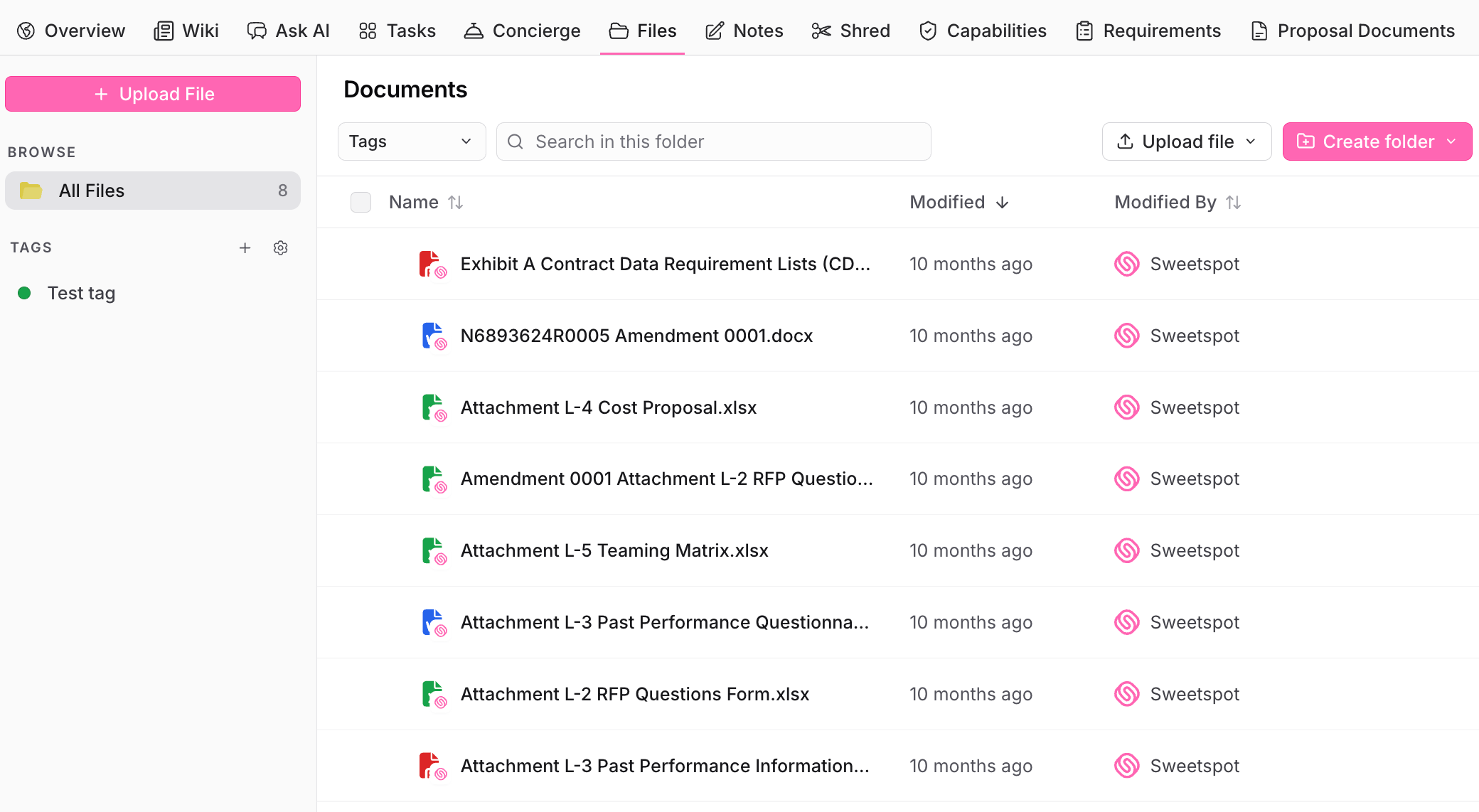
The pursuit's document repository: solicitation documents, amendments, and working files.
* Organize with **folders** and **tags**, and search within a folder
* Upload files directly, or let integrations (like GSA eBuy) attach them automatically
* Copy files worth reusing into your [Library](/library/organization-library) so future pursuits benefit
Everything here is what the AI reads: the Wiki, Shred, and pursuit chats all work from these files, so keeping Files current keeps everything else current.
## Concierge
Route pursuit work to the Sweetspot team as a managed service. Available on select plans.
## Files
The pursuit's document repository: solicitation documents, amendments, and working files.
* Organize with **folders** and **tags**, and search within a folder
* Upload files directly, or let integrations (like GSA eBuy) attach them automatically
* Copy files worth reusing into your [Library](/library/organization-library) so future pursuits benefit
Everything here is what the AI reads: the Wiki, Shred, and pursuit chats all work from these files, so keeping Files current keeps everything else current.
 ## Notes
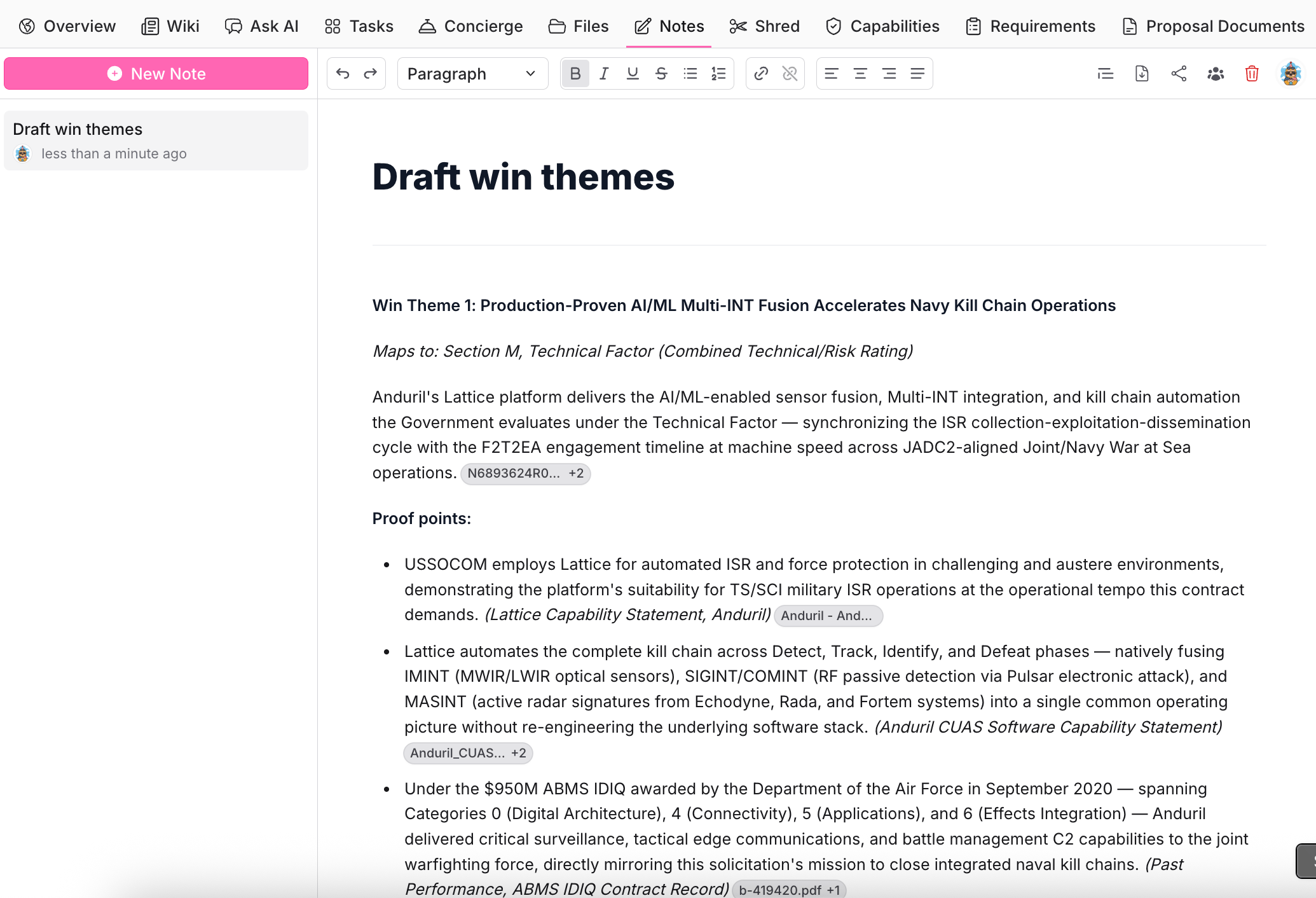
Rich-text notes with formatting, sharing, and export to Word. AI-drafted content, like win themes, lands here with citations back to the source files.
Use Notes for content that's pursuit-specific but not part of the proposal document itself: win theme drafts, call notes, and internal strategy.
## Notes
Rich-text notes with formatting, sharing, and export to Word. AI-drafted content, like win themes, lands here with citations back to the source files.
Use Notes for content that's pursuit-specific but not part of the proposal document itself: win theme drafts, call notes, and internal strategy.
 ## Shred
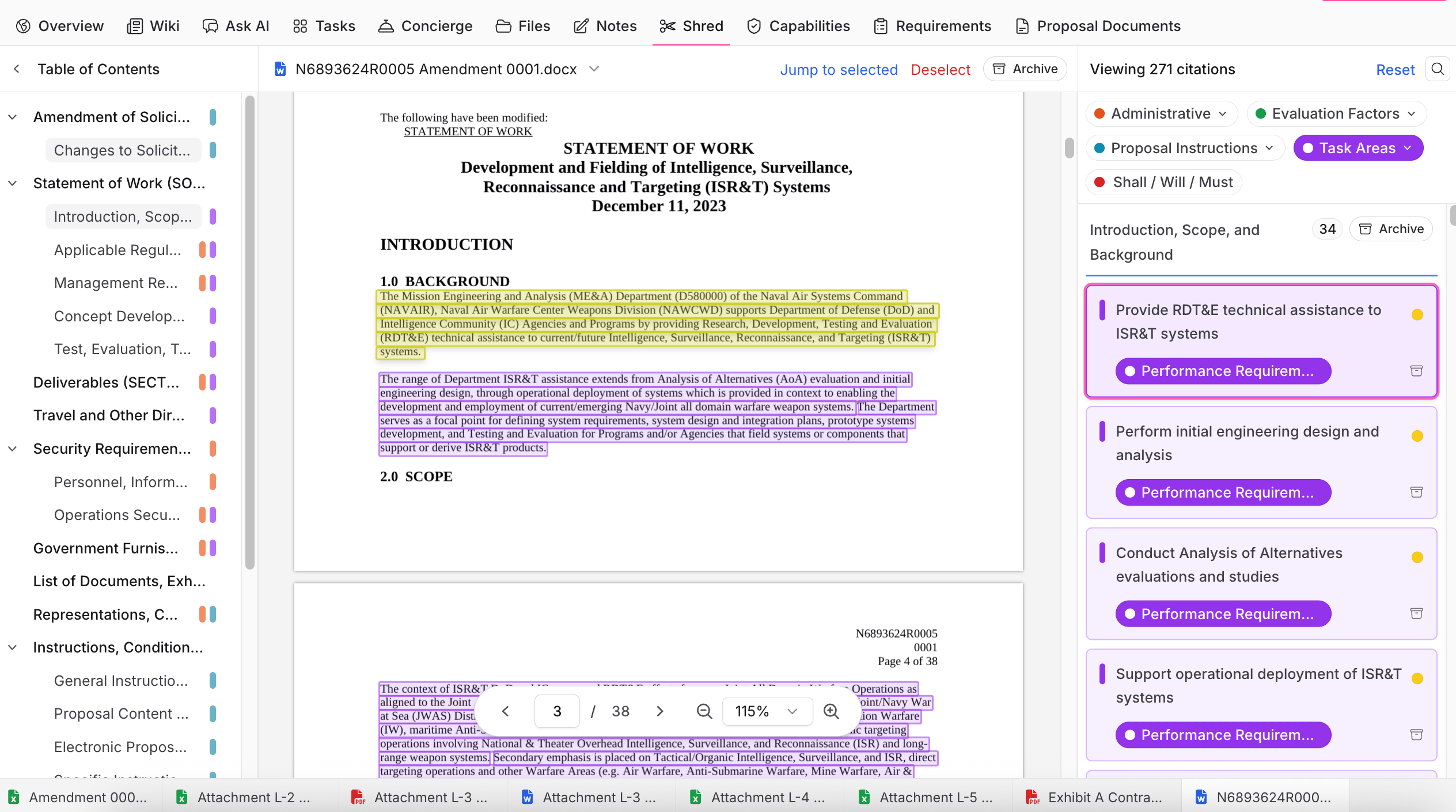
Shred is the foundation the matrices are built on. Sweetspot parses each solicitation document into categorized citations:
* **Administrative** requirements
* **Evaluation Factors** (Section M)
* **Proposal Instructions** (Section L)
* **Task Areas** (Section C / SOW)
* **Shall / Will / Must** statements
Shred runs automatically when a pursuit is created and solicitation files are added, so by the time you open this tab the documents are already parsed.
Each citation is highlighted in the source document, side by side with the citation list, so you can verify every extracted requirement in context before it flows downstream. Filter citations by category, and archive documents you've finished analyzing.
Review the Shred output early: it's what populates Requirements and Capabilities.
## Shred
Shred is the foundation the matrices are built on. Sweetspot parses each solicitation document into categorized citations:
* **Administrative** requirements
* **Evaluation Factors** (Section M)
* **Proposal Instructions** (Section L)
* **Task Areas** (Section C / SOW)
* **Shall / Will / Must** statements
Shred runs automatically when a pursuit is created and solicitation files are added, so by the time you open this tab the documents are already parsed.
Each citation is highlighted in the source document, side by side with the citation list, so you can verify every extracted requirement in context before it flows downstream. Filter citations by category, and archive documents you've finished analyzing.
Review the Shred output early: it's what populates Requirements and Capabilities.
 ## Capabilities
The capability matrix answers one question: **can we actually do this work?** Every capability extracted from the shred becomes a row, scored against your organization, so you can make the bid/no-bid call on evidence and spot the gaps that need teaming partners.
## Capabilities
The capability matrix answers one question: **can we actually do this work?** Every capability extracted from the shred becomes a row, scored against your organization, so you can make the bid/no-bid call on evidence and spot the gaps that need teaming partners.
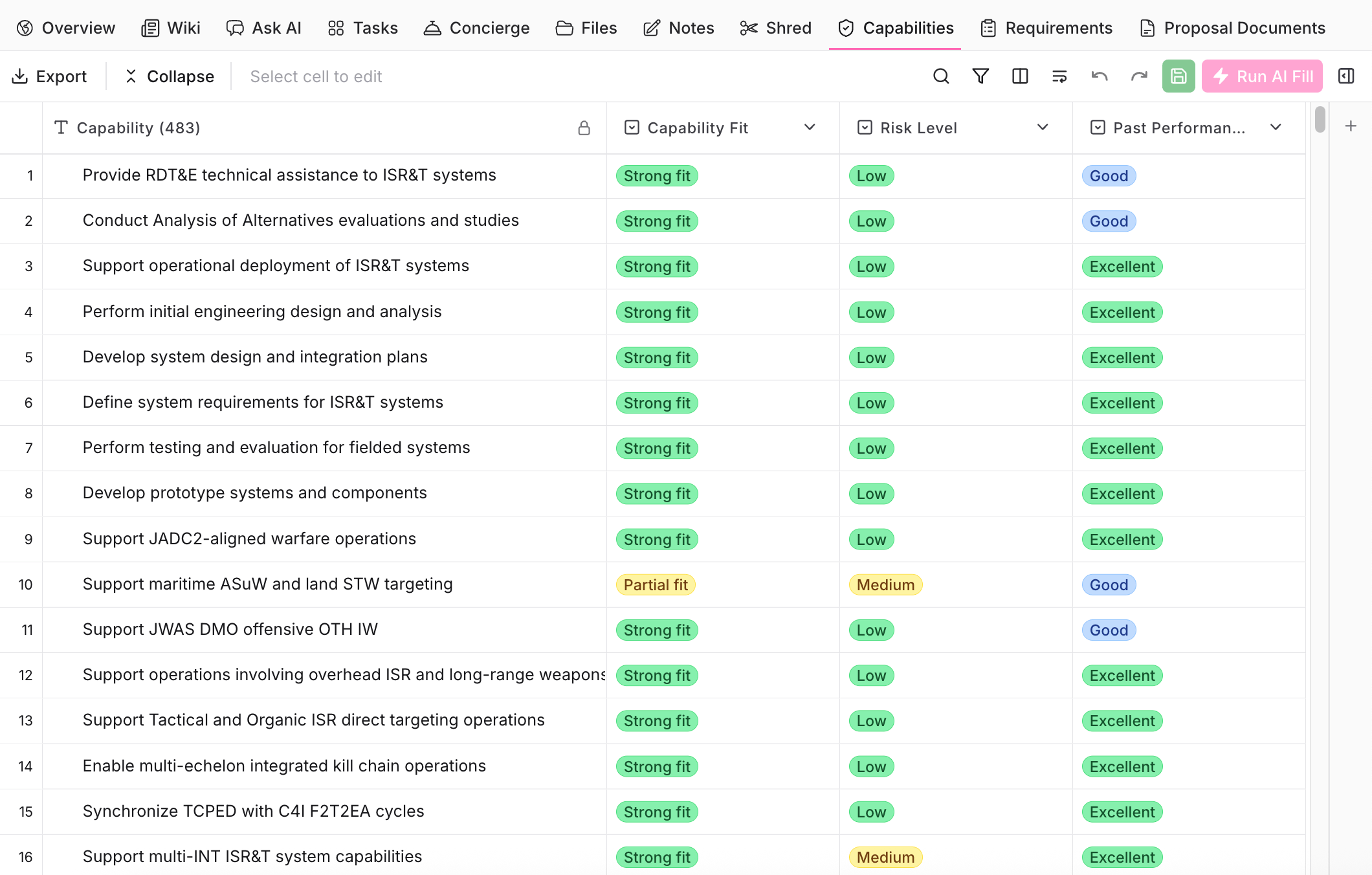 Click **Run AI Fill** to score every cell from your Library and company profile. To redo a subset, select cells and use **Run AI Fill on selected cells**. Open a row's details to see the reasoning and sources behind a score.
**Build the columns your process needs.** The matrix starts without columns; you decide what to score. Open the **Columns** panel and either:
* Add a **suggested column** with the **+** next to its name. These cover the dimensions teams typically need, like Capability Fit, Risk Level, and Past Performance Relevance.
* Create a **custom column**: describe the data you want to extract from the solicitation shred. Name the column, give the AI instructions, and pick the answer structure: free-form text, select one, or select many, with your own answer options or options pulled from your Library. For example, add a custom column called "Past Performance Relevance Mapped" and it grades each capability (like "Strong fit") and links the Library file it based the grade on, so you can check the source yourself.
**Act on the gaps.** Rows where fit is weak or risk is high are your teaming checklist: search [Companies](/pursuits/companies-and-contacts) and your partner library for coverage. Export the matrix when you need it in a deck or a teaming discussion.
## Requirements
The compliance matrix answers the other question: **are we meeting every requirement the government set?** Every requirement from the shred becomes a compliance item with full traceability from RFP text to your proposal response.
Click **Run AI Fill** to score every cell from your Library and company profile. To redo a subset, select cells and use **Run AI Fill on selected cells**. Open a row's details to see the reasoning and sources behind a score.
**Build the columns your process needs.** The matrix starts without columns; you decide what to score. Open the **Columns** panel and either:
* Add a **suggested column** with the **+** next to its name. These cover the dimensions teams typically need, like Capability Fit, Risk Level, and Past Performance Relevance.
* Create a **custom column**: describe the data you want to extract from the solicitation shred. Name the column, give the AI instructions, and pick the answer structure: free-form text, select one, or select many, with your own answer options or options pulled from your Library. For example, add a custom column called "Past Performance Relevance Mapped" and it grades each capability (like "Strong fit") and links the Library file it based the grade on, so you can check the source yourself.
**Act on the gaps.** Rows where fit is weak or risk is high are your teaming checklist: search [Companies](/pursuits/companies-and-contacts) and your partner library for coverage. Export the matrix when you need it in a deck or a teaming discussion.
## Requirements
The compliance matrix answers the other question: **are we meeting every requirement the government set?** Every requirement from the shred becomes a compliance item with full traceability from RFP text to your proposal response.
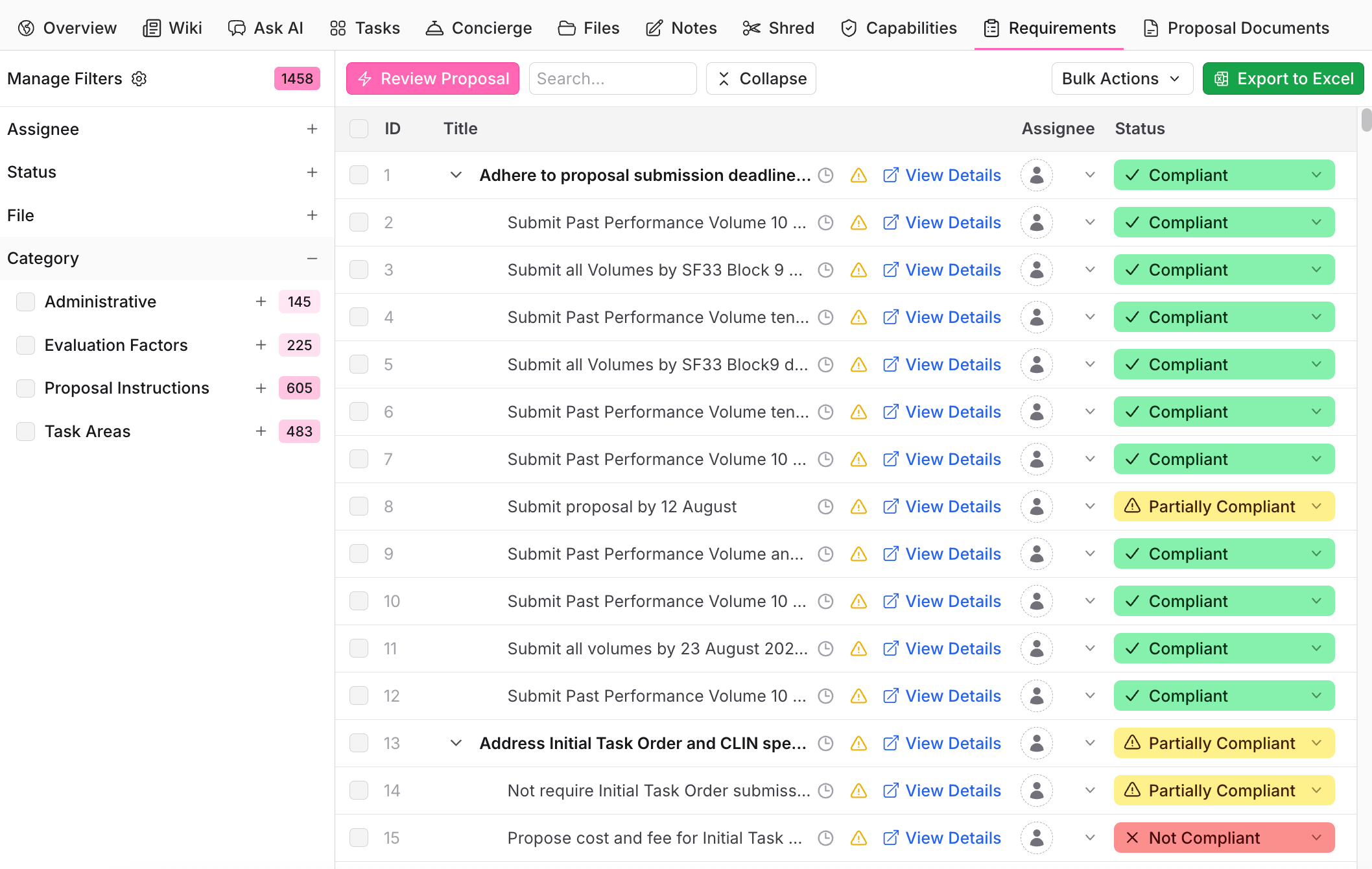 Each item carries:
* The raw requirement text and its **RFP section and page**
* A **category** (Administrative, Evaluation Factors, Proposal Instructions, Task Areas, Deliverables)
* An **assignee** and **due date**
* A **status**: Not Reviewed, Not Compliant, Partially Compliant, or Compliant, with reasoning
* The **proposal section, page, and excerpt** where your response addresses it
**Work the matrix.** Assign an owner and due date to every requirement early; the sidebar filters (by assignee, status, category, and file) then become each person's work queue. Statuses can be set manually as sections get written.
**Check the draft automatically.** Click **Review Proposal** and the AI reads your proposal documents against every requirement: it sets the compliance status, explains its reasoning, and links the proposal excerpt where the requirement is addressed. Run it before every color team to catch gaps while there's still time to fix them.
**Export to Excel.** Use **Export to Excel** for color team reviews, compliance checklists for teammates outside Sweetspot, or submission records. Bulk actions handle status and assignee changes across many items at once.
## Proposal Documents
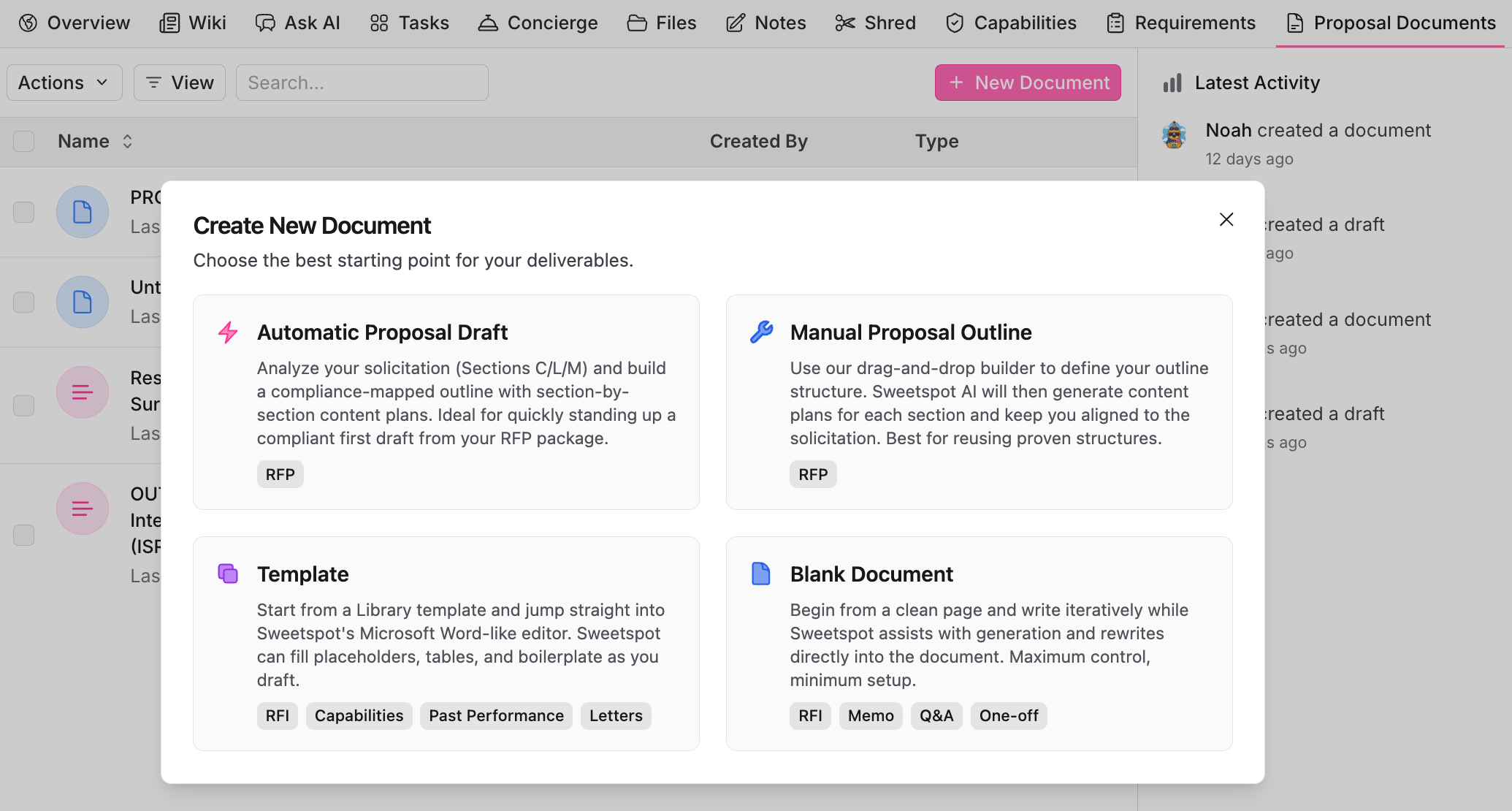
The proposal editor workspace: outlines, drafts, forms, and spreadsheets. **New Document** gives you four starting points:
* **Automatic Proposal Draft**: Sweetspot analyzes the solicitation (Sections C/L/M) and builds a compliance-mapped outline with section-by-section content plans. The fastest path to a compliant first draft.
* **Manual Proposal Outline**: define the outline structure yourself with the drag-and-drop builder; the AI generates content plans for each section. Best for reusing proven structures.
* **Template**: start from a Library template in the Word-like editor; Sweetspot fills placeholders, tables, and boilerplate as you draft. Good for RFIs, capability statements, and letters.
* **Blank Document**: start from a clean page and write at your own pace, with the AI generating and rewriting text as you ask for it.
Each item carries:
* The raw requirement text and its **RFP section and page**
* A **category** (Administrative, Evaluation Factors, Proposal Instructions, Task Areas, Deliverables)
* An **assignee** and **due date**
* A **status**: Not Reviewed, Not Compliant, Partially Compliant, or Compliant, with reasoning
* The **proposal section, page, and excerpt** where your response addresses it
**Work the matrix.** Assign an owner and due date to every requirement early; the sidebar filters (by assignee, status, category, and file) then become each person's work queue. Statuses can be set manually as sections get written.
**Check the draft automatically.** Click **Review Proposal** and the AI reads your proposal documents against every requirement: it sets the compliance status, explains its reasoning, and links the proposal excerpt where the requirement is addressed. Run it before every color team to catch gaps while there's still time to fix them.
**Export to Excel.** Use **Export to Excel** for color team reviews, compliance checklists for teammates outside Sweetspot, or submission records. Bulk actions handle status and assignee changes across many items at once.
## Proposal Documents
The proposal editor workspace: outlines, drafts, forms, and spreadsheets. **New Document** gives you four starting points:
* **Automatic Proposal Draft**: Sweetspot analyzes the solicitation (Sections C/L/M) and builds a compliance-mapped outline with section-by-section content plans. The fastest path to a compliant first draft.
* **Manual Proposal Outline**: define the outline structure yourself with the drag-and-drop builder; the AI generates content plans for each section. Best for reusing proven structures.
* **Template**: start from a Library template in the Word-like editor; Sweetspot fills placeholders, tables, and boilerplate as you draft. Good for RFIs, capability statements, and letters.
* **Blank Document**: start from a clean page and write at your own pace, with the AI generating and rewriting text as you ask for it.
 See [Proposal Engine](/proposals/proposal-engine) for the full drafting pipeline.
## Typical sequence
Read the Wiki for the full snapshot of the solicitation, then take your open questions to Ask AI: who the incumbent is, whether you're eligible for the set-aside, what clearances or facilities are required, how the evaluation factors are weighted, and where your gaps are. Record the bid decision and strategy in Notes.
Shred runs automatically on the solicitation files. Open the tab and spot-check the extracted citations against the highlighted source text, especially evaluation factors and proposal instructions, since Requirements and Capabilities are built from them.
In Capabilities, add the columns you score bids on and run AI Fill. Review the weak-fit and high-risk rows: those are the capabilities to shore up with teaming partners before you commit resources.
In Proposal Documents, start from an Automatic Proposal Draft (or a manual outline or template), then work section by section with the AI pulling from your Library.
In Requirements, give every requirement an owner and a due date so the matrix becomes each person's work queue. As sections are written, mark compliance manually, or run Review Proposal to check every compliance item against the draft automatically. Re-run it before each color team and export to Excel for the review.
See [Proposal Engine](/proposals/proposal-engine) for the full drafting pipeline.
## Typical sequence
Read the Wiki for the full snapshot of the solicitation, then take your open questions to Ask AI: who the incumbent is, whether you're eligible for the set-aside, what clearances or facilities are required, how the evaluation factors are weighted, and where your gaps are. Record the bid decision and strategy in Notes.
Shred runs automatically on the solicitation files. Open the tab and spot-check the extracted citations against the highlighted source text, especially evaluation factors and proposal instructions, since Requirements and Capabilities are built from them.
In Capabilities, add the columns you score bids on and run AI Fill. Review the weak-fit and high-risk rows: those are the capabilities to shore up with teaming partners before you commit resources.
In Proposal Documents, start from an Automatic Proposal Draft (or a manual outline or template), then work section by section with the AI pulling from your Library.
In Requirements, give every requirement an owner and a due date so the matrix becomes each person's work queue. As sections are written, mark compliance manually, or run Review Proposal to check every compliance item against the draft automatically. Re-run it before each color team and export to Excel for the review.