> ## Documentation Index
> Fetch the complete documentation index at: https://docs.sweetspotgov.com/llms.txt
> Use this file to discover all available pages before exploring further.
# Monitors
> Watch vendors, agencies, opportunities, and the open web. Updates come to you.
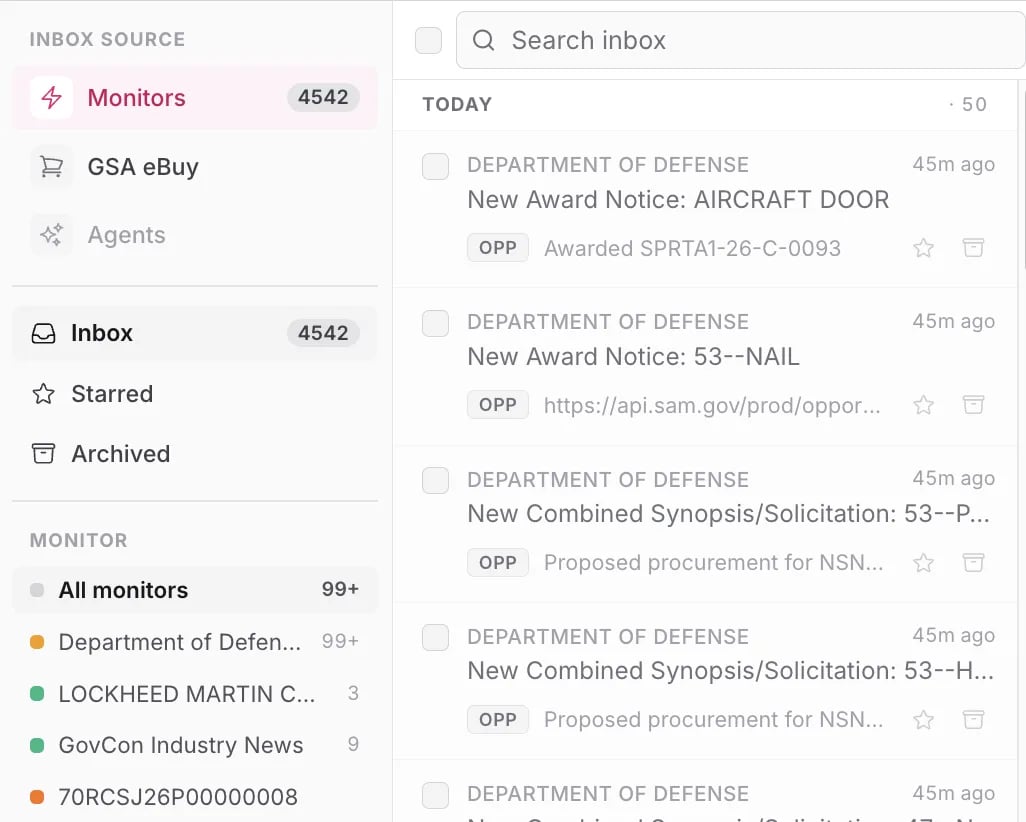 A Monitor watches a vendor, agency, opportunity, or web source and sends new awards, amendments, and updates to your [Inbox](/intelligence/inbox) and notification channels. Set one up once and Sweetspot checks for changes continuously.
Create monitors from the **Monitors** page, from any vendor, agency, or opportunity page, or let the AI build them for you (see [Set up with AI](#set-up-with-ai)).
## Choose what to track
Creating a monitor starts with picking one of four types:
Watch a company, like a competitor or teaming partner. You're alerted when it wins a new prime award, IDV, or OTA, when its SAM registration changes, or when it's mentioned on the web.
Watch a specific opportunity. You're alerted when an amendment posts, Q\&A responses are released, the deadline changes, or new attachments are added. Works on contract opportunities, grants, and forecasts.
Watch an agency or office you sell to. You're alerted when it posts a new solicitation, forecast entry, award, or grant notice.
Watch the open web for a topic, described in plain English, like "zero trust modernization from DHS, DoD, and GSA". Sweetspot checks daily and alerts you on new mentions. Also useful for watching state procurement sites for SLED RFPs.
Then choose the specific thing to watch. Vendor and agency monitors take a company or an agency; web monitors take a plain-English description of the topic.
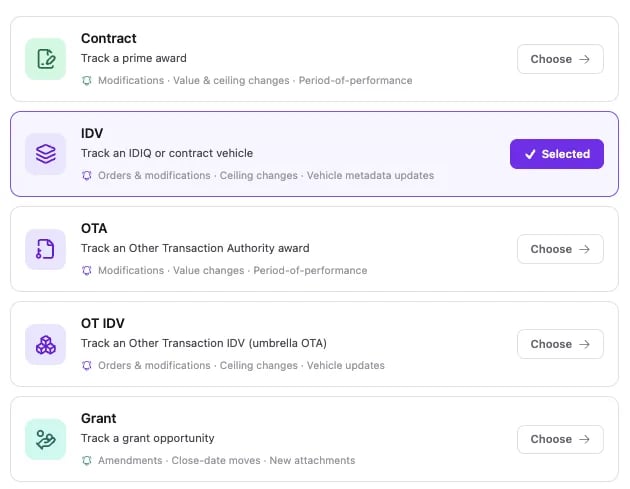
For example, opportunity monitors also ask which kind of record you're tracking:
* **Contract**: a prime award
* **IDV**: an IDIQ or contract vehicle
* **OTA / OT IDV**: an Other Transaction award or vehicle
* **Grant**: a grant opportunity
Each option lists the events it watches, like modifications, ceiling changes, amendments, and deadline moves.
A Monitor watches a vendor, agency, opportunity, or web source and sends new awards, amendments, and updates to your [Inbox](/intelligence/inbox) and notification channels. Set one up once and Sweetspot checks for changes continuously.
Create monitors from the **Monitors** page, from any vendor, agency, or opportunity page, or let the AI build them for you (see [Set up with AI](#set-up-with-ai)).
## Choose what to track
Creating a monitor starts with picking one of four types:
Watch a company, like a competitor or teaming partner. You're alerted when it wins a new prime award, IDV, or OTA, when its SAM registration changes, or when it's mentioned on the web.
Watch a specific opportunity. You're alerted when an amendment posts, Q\&A responses are released, the deadline changes, or new attachments are added. Works on contract opportunities, grants, and forecasts.
Watch an agency or office you sell to. You're alerted when it posts a new solicitation, forecast entry, award, or grant notice.
Watch the open web for a topic, described in plain English, like "zero trust modernization from DHS, DoD, and GSA". Sweetspot checks daily and alerts you on new mentions. Also useful for watching state procurement sites for SLED RFPs.
Then choose the specific thing to watch. Vendor and agency monitors take a company or an agency; web monitors take a plain-English description of the topic.
For example, opportunity monitors also ask which kind of record you're tracking:
* **Contract**: a prime award
* **IDV**: an IDIQ or contract vehicle
* **OTA / OT IDV**: an Other Transaction award or vehicle
* **Grant**: a grant opportunity
Each option lists the events it watches, like modifications, ceiling changes, amendments, and deadline moves.
 ## Coverage: what triggers an alert
Once you've chosen what to track, you configure the monitor's coverage: the set of **signals** that trigger alerts. Each signal has a toggle. Switch one off to stop alerting on it; at least one signal must stay on.
## Coverage: what triggers an alert
Once you've chosen what to track, you configure the monitor's coverage: the set of **signals** that trigger alerts. Each signal has a toggle. Switch one off to stop alerting on it; at least one signal must stay on.
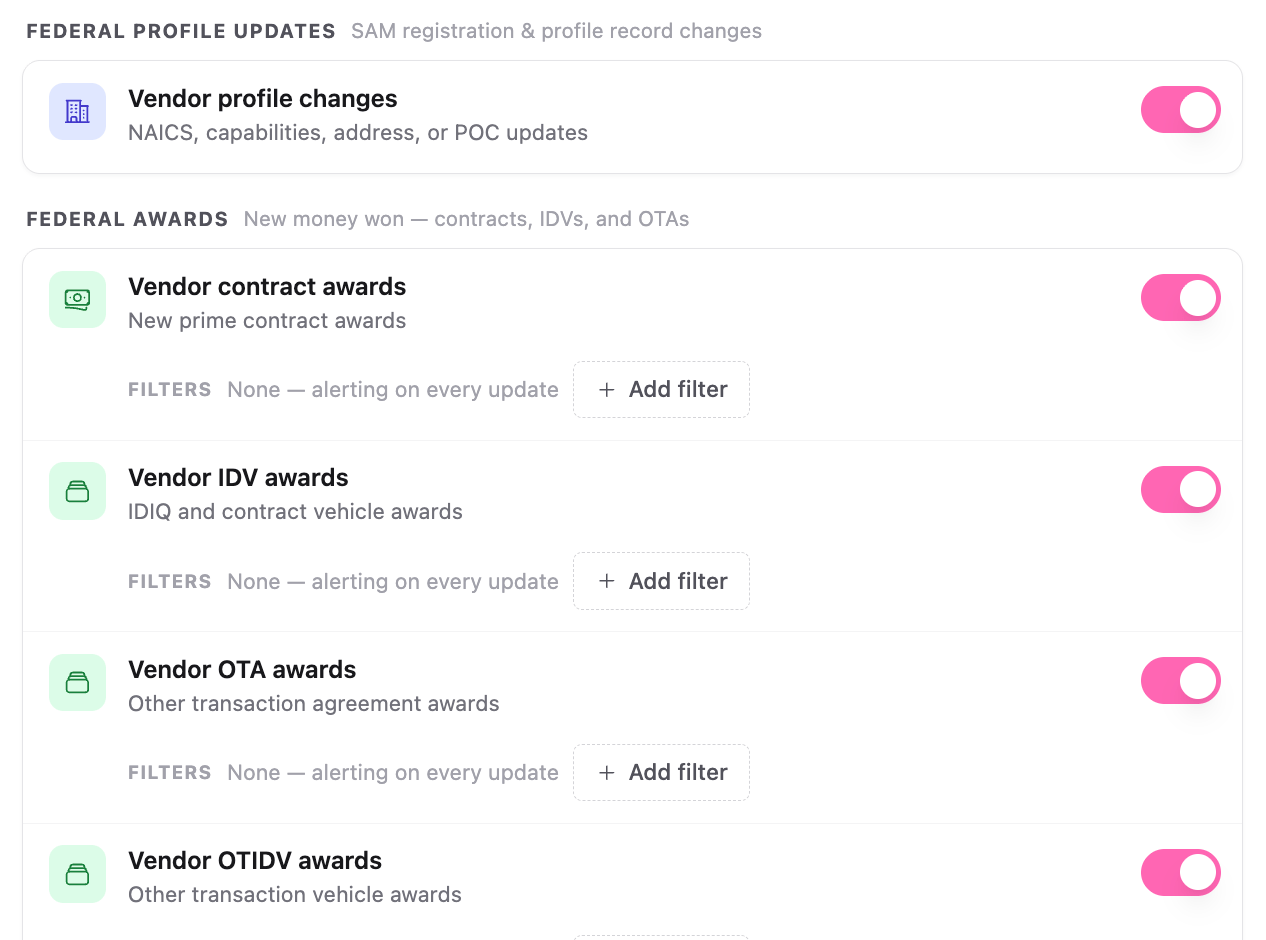 Below each signal is an optional **Filters** row:
* **No filters** (the default): the signal alerts on every update.
* **Add filter**: narrows that one signal without affecting the others. Available filters depend on the signal and include keywords, NAICS and PSC codes, set-asides, notice types, award and IDV types, places of performance, and a minimum obligated amount.
## Subscribers: who gets alerted
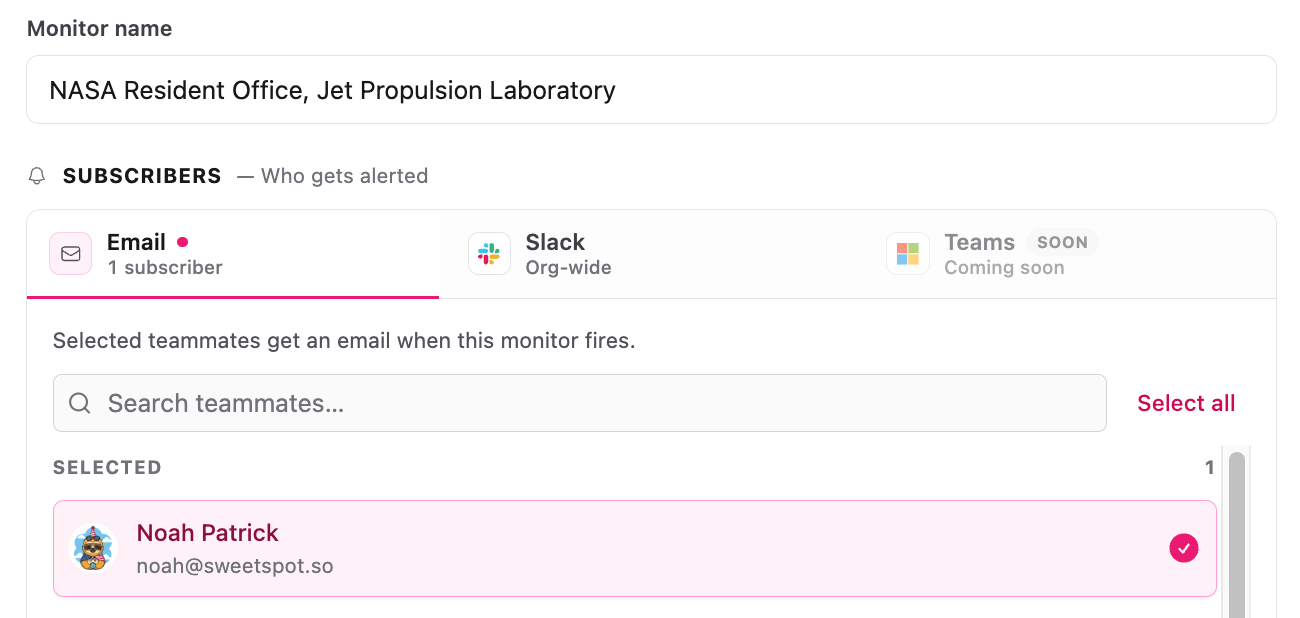
Finally, name the monitor and choose where its alerts go:
* **Email**: select the teammates who get an email when this monitor fires.
* **Slack**: pick a connected Slack channel to post alerts to. Requires the [Slack integration](/settings/integrations).
* **Teams**: coming soon.
Below each signal is an optional **Filters** row:
* **No filters** (the default): the signal alerts on every update.
* **Add filter**: narrows that one signal without affecting the others. Available filters depend on the signal and include keywords, NAICS and PSC codes, set-asides, notice types, award and IDV types, places of performance, and a minimum obligated amount.
## Subscribers: who gets alerted
Finally, name the monitor and choose where its alerts go:
* **Email**: select the teammates who get an email when this monitor fires.
* **Slack**: pick a connected Slack channel to post alerts to. Requires the [Slack integration](/settings/integrations).
* **Teams**: coming soon.
 Every alert also lands in your [Inbox](/intelligence/inbox), regardless of subscriber settings.
## Set up with AI
Instead of configuring monitors one at a time, use **Set up my monitors with AI**. The AI asks about your business: what you sell, which agencies you target, who your competitors and teaming partners are, and where you're the incumbent. Then it recommends and creates monitors for you.
Every alert also lands in your [Inbox](/intelligence/inbox), regardless of subscriber settings.
## Set up with AI
Instead of configuring monitors one at a time, use **Set up my monitors with AI**. The AI asks about your business: what you sell, which agencies you target, who your competitors and teaming partners are, and where you're the incumbent. Then it recommends and creates monitors for you.