> ## Documentation Index
> Fetch the complete documentation index at: https://docs.sweetspotgov.com/llms.txt
> Use this file to discover all available pages before exploring further.
# Saved Searches
> Automated Search Queries
## Saved Searches
Saved Searches automate the process of search queries on a daily, weekly, or monthly interval. They allow users to stay updated with the latest opportunities in thier inbox, without the need to manually perform searches each time. Here\`s how you can utilize Saved Searches effectively:
 ### Creating a Saved Search
To create a saved search:
1. Navigate to the `Saved Searches` section of the platform from the left sidebar.
2. Click on the `+ New` button.
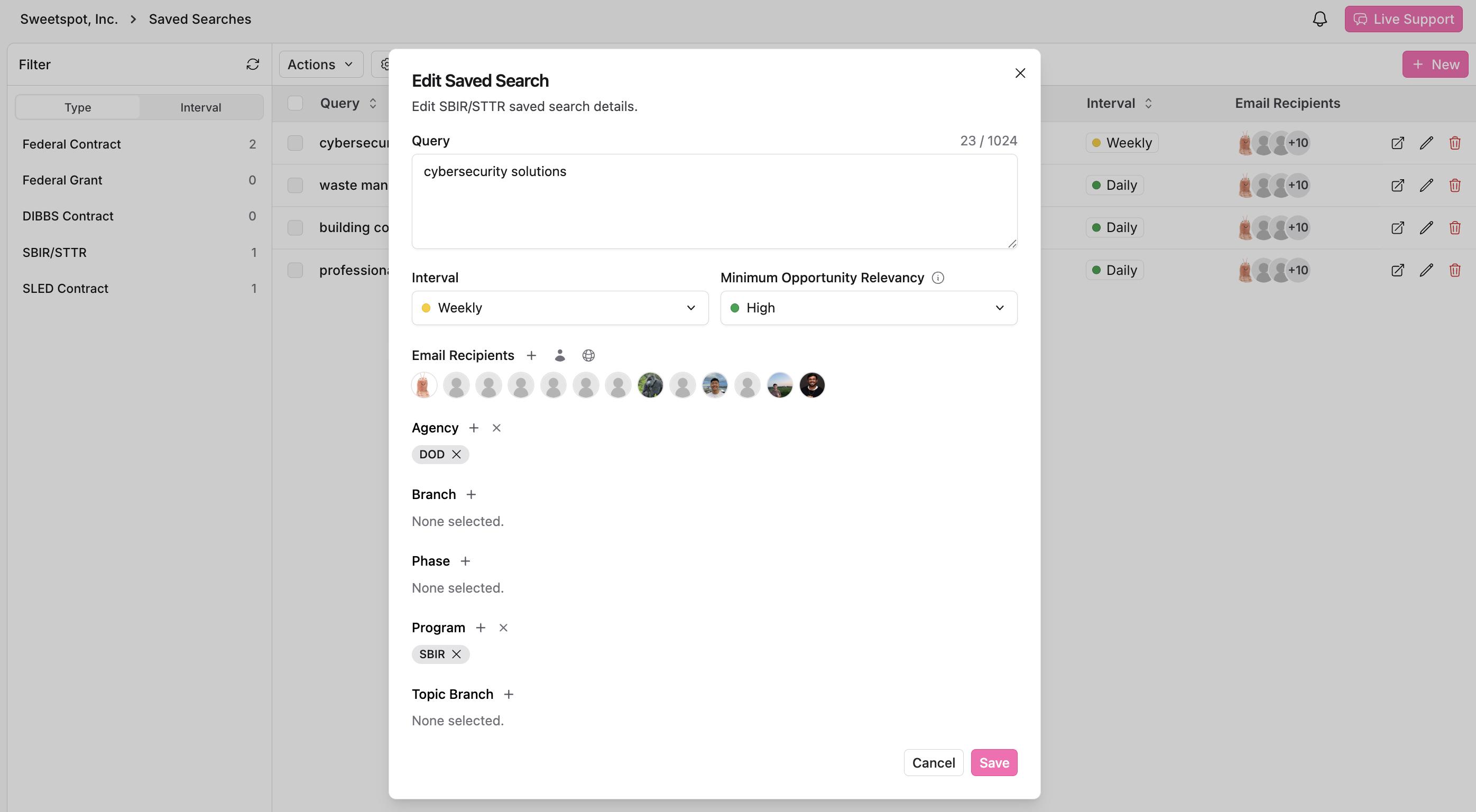
3. In the pop-up window, define your `Query` by entering keywords, phrases, or specific criteria.
4. Select the `Schedule` interval, choosing daily, weekly, or monthly updates.
5. Select opportunity relevancy (low, medium, or high) and assign multiple email recipients from your organization.
6. Apply any additional filters needed to tailor your search further.
7. Click `Save` to activate it.
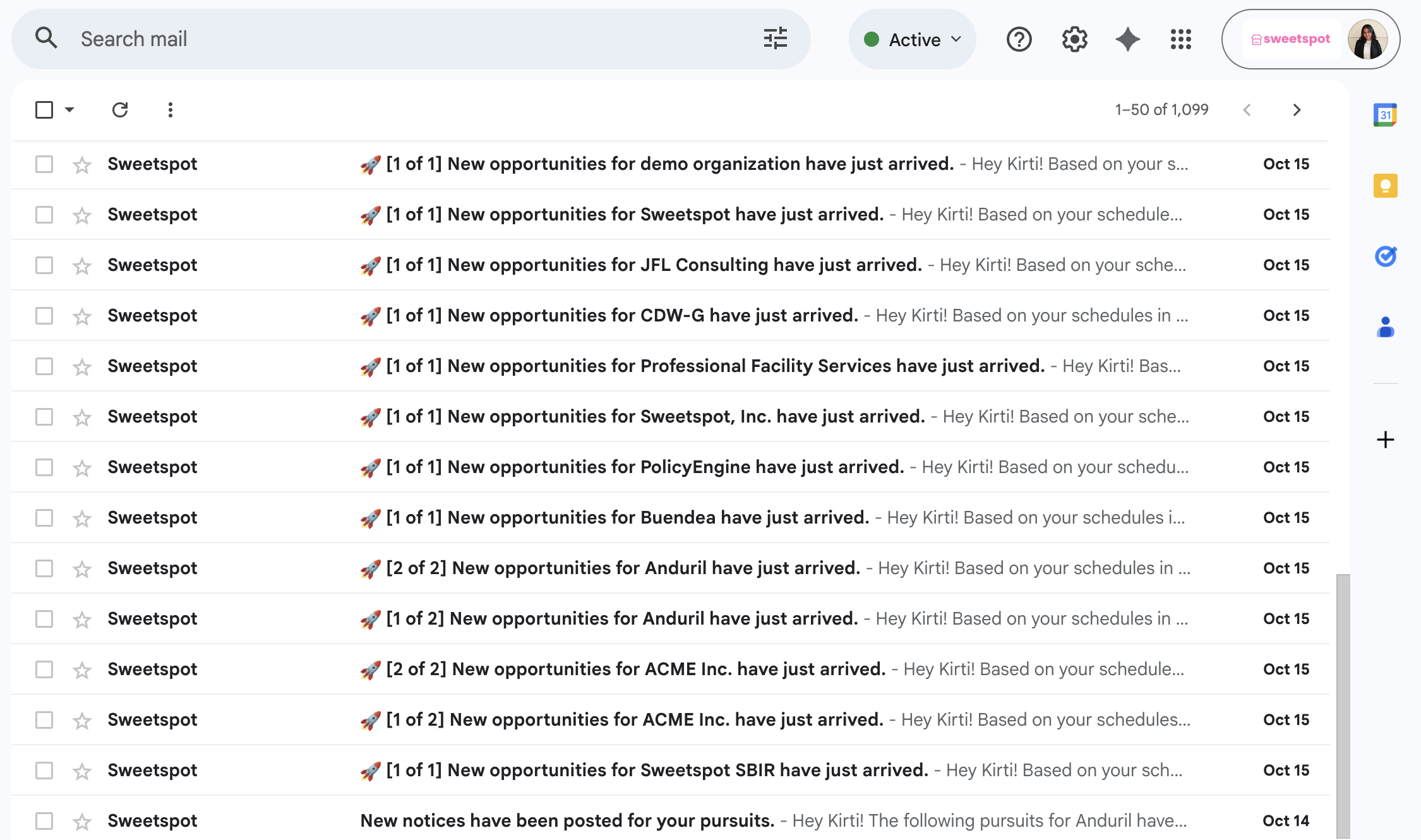
Your search criteria will be saved, and all assignned team members will receive automated search results in email inboxes at the chosen interval.
### Creating a Saved Search
To create a saved search:
1. Navigate to the `Saved Searches` section of the platform from the left sidebar.
2. Click on the `+ New` button.
3. In the pop-up window, define your `Query` by entering keywords, phrases, or specific criteria.
4. Select the `Schedule` interval, choosing daily, weekly, or monthly updates.
5. Select opportunity relevancy (low, medium, or high) and assign multiple email recipients from your organization.
6. Apply any additional filters needed to tailor your search further.
7. Click `Save` to activate it.
Your search criteria will be saved, and all assignned team members will receive automated search results in email inboxes at the chosen interval.
 ### Managing Saved Searches
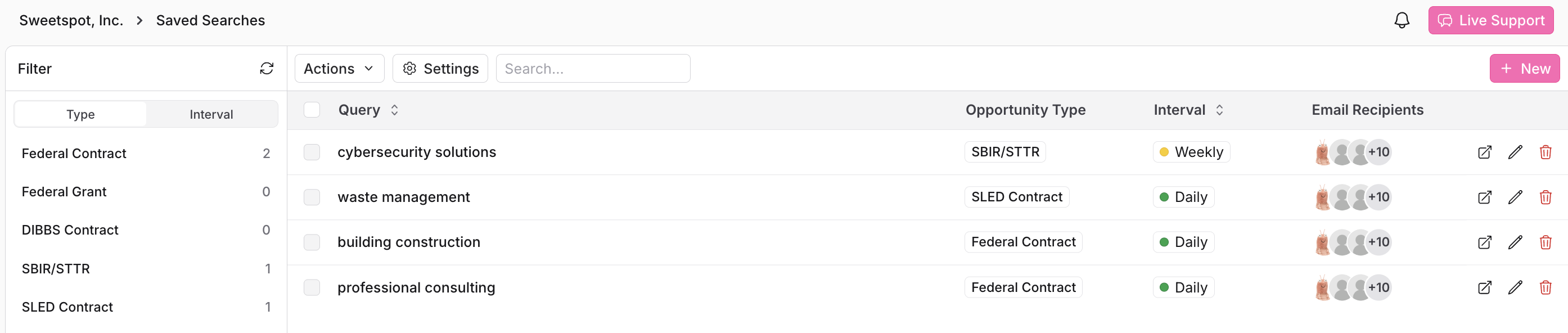
Once your saved searches are set, you can:
* **Run Search**: Instantly perform the search associated with a particular schedule.
* **Edit**: Update or modify the search criteria, recipients, and frequency of a schedule.
* **Delete**: Remove a schedule that you no longer need.
### Applying Filters to Saved Searches
You can apply a variety of filters to each schedule to narrow down your search:
* **Buyer(s)**: Look for contracts by naming the government department or agency.
* **Notice Type(s)**: Specify the notice type to streamline your search.
* **NAICS Code(s)**, **PSC Code(s)**, and **Set Aside Code(s)**: Use these codes to find opportunities relevant to your industry and services.
Each of these filters can be selected or deselected to refine the search results your saved search will deliver.
### Removing Filters
To remove a filter from an existing saved search, simply edit the search and uncheck the selected filter. This adjustment will be reflected in the subsequent results you receive.
### Interval and Delivery
Each saved search’s interval is shown in the `Interval` column, ensuring timely updates so you don't miss out on any relevant contracts.
### Managing Saved Searches
Once your saved searches are set, you can:
* **Run Search**: Instantly perform the search associated with a particular schedule.
* **Edit**: Update or modify the search criteria, recipients, and frequency of a schedule.
* **Delete**: Remove a schedule that you no longer need.
### Applying Filters to Saved Searches
You can apply a variety of filters to each schedule to narrow down your search:
* **Buyer(s)**: Look for contracts by naming the government department or agency.
* **Notice Type(s)**: Specify the notice type to streamline your search.
* **NAICS Code(s)**, **PSC Code(s)**, and **Set Aside Code(s)**: Use these codes to find opportunities relevant to your industry and services.
Each of these filters can be selected or deselected to refine the search results your saved search will deliver.
### Removing Filters
To remove a filter from an existing saved search, simply edit the search and uncheck the selected filter. This adjustment will be reflected in the subsequent results you receive.
### Interval and Delivery
Each saved search’s interval is shown in the `Interval` column, ensuring timely updates so you don't miss out on any relevant contracts.