> ## Documentation Index
> Fetch the complete documentation index at: https://docs.sweetspotgov.com/llms.txt
> Use this file to discover all available pages before exploring further.
# Saved Searches
> Automate your best queries and get alerted when new opportunities match
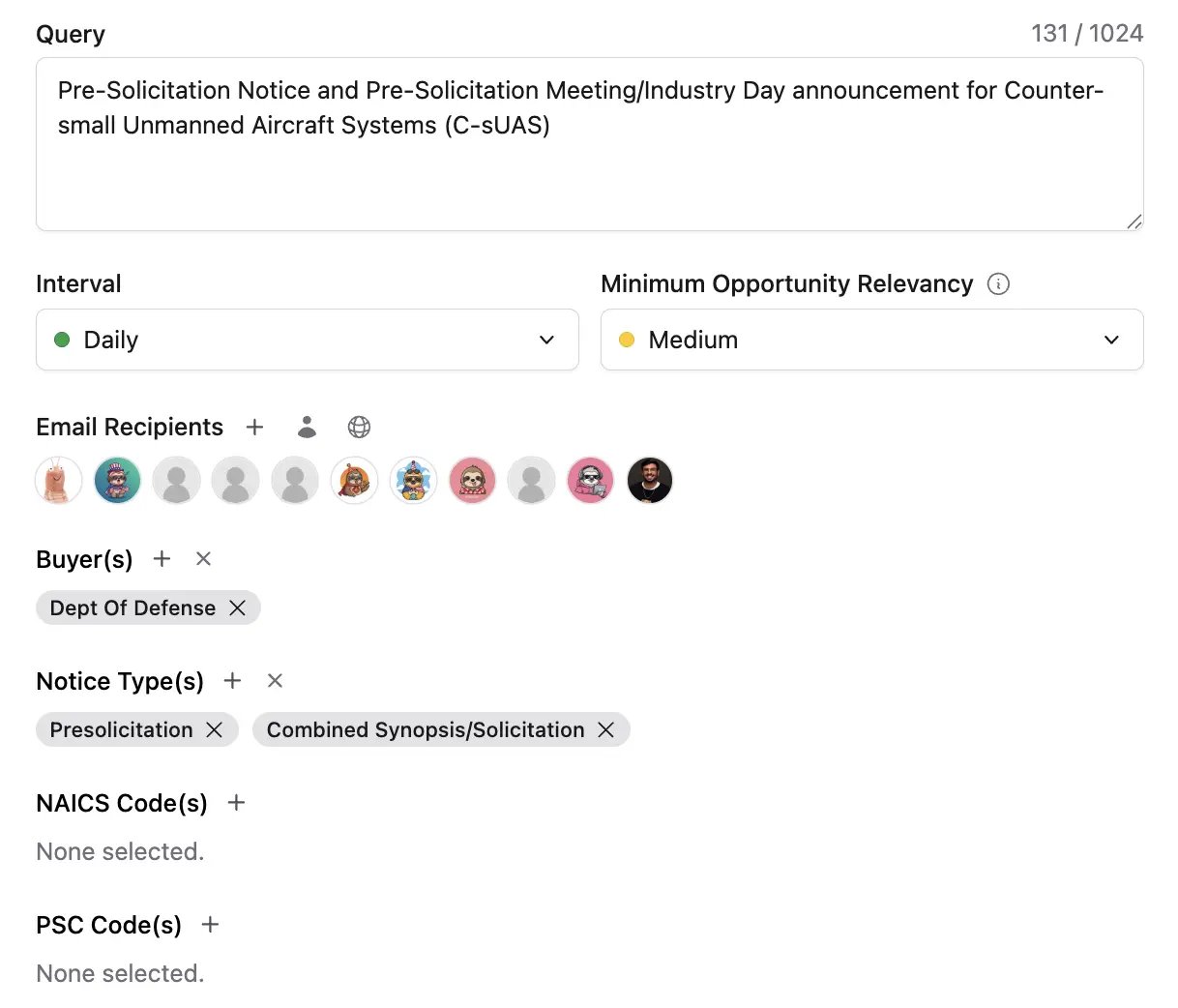 A Saved Search runs your query on a schedule and alerts you when new opportunities match.
## Create a Saved Search
Choose the opportunity type (Federal Contracts, Federal Grants, DIBBS, SBIR/STTRs, or State & Local), enter your keyword query, and add filters like NAICS codes, set-asides, or agencies.
* **Email interval**: how often Sweetspot emails you new matches.
* **Minimum opportunity relevancy**: how closely a match must fit before it's included. High is the typical choice; use medium for a broader list.
* **Email recipients**: who on your team receives the alerts.
Save the search. It's named after the query itself, so a descriptive query doubles as a recognizable name in your Saved Searches list.
Go through the notifications in your email or in Sweetspot's [Inbox](/intelligence/inbox) as they arrive.
Manage all of your Saved Searches from the **Saved Searches** page in the Search flyout.
## Tips
* **Create one search per need.** Narrow queries produce fewer, more relevant alerts than one broad query.
* **Filter by your set-asides.** If you hold certifications like 8(a), HUBZone, WOSB, or SDVOSB, add them as filters so alerts only include opportunities you qualify for.
* **Delete searches you no longer need.** Stale searches add alert noise.
## Beyond Saved Searches
Saved Searches watch for **new opportunities matching a query**. To watch specific vendors, agencies, live opportunities, or web sources, use [Monitors](/intelligence/monitors). Monitor alerts and Saved Search results both land in your [Inbox](/intelligence/inbox).
A Saved Search runs your query on a schedule and alerts you when new opportunities match.
## Create a Saved Search
Choose the opportunity type (Federal Contracts, Federal Grants, DIBBS, SBIR/STTRs, or State & Local), enter your keyword query, and add filters like NAICS codes, set-asides, or agencies.
* **Email interval**: how often Sweetspot emails you new matches.
* **Minimum opportunity relevancy**: how closely a match must fit before it's included. High is the typical choice; use medium for a broader list.
* **Email recipients**: who on your team receives the alerts.
Save the search. It's named after the query itself, so a descriptive query doubles as a recognizable name in your Saved Searches list.
Go through the notifications in your email or in Sweetspot's [Inbox](/intelligence/inbox) as they arrive.
Manage all of your Saved Searches from the **Saved Searches** page in the Search flyout.
## Tips
* **Create one search per need.** Narrow queries produce fewer, more relevant alerts than one broad query.
* **Filter by your set-asides.** If you hold certifications like 8(a), HUBZone, WOSB, or SDVOSB, add them as filters so alerts only include opportunities you qualify for.
* **Delete searches you no longer need.** Stale searches add alert noise.
## Beyond Saved Searches
Saved Searches watch for **new opportunities matching a query**. To watch specific vendors, agencies, live opportunities, or web sources, use [Monitors](/intelligence/monitors). Monitor alerts and Saved Search results both land in your [Inbox](/intelligence/inbox).